Working with files
Rights and restrictions
Record what you may do with each file in custom fields, keep the sensitive ones to a few people, and filter on them before you publish.
Archivist Admin
Checked in Starchive on October 13, 2026
You want everyone to know what may be published, and only a few people to see the details of a licence or an agreement.
Starchive has no rights module of its own: you record rights in custom fields. This workspace uses two. Rights Notes, a Paragraph field, holds each file’s licence and source. Cleared for Publication, a yes or no field, says whether the file may go out.
Keep the details to a few people
- Open Custom Fields in the left rail and click the field. Its page says who can see it, at the top right: Rights Notes is Restricted, so only Total access members see it. Below are its values, one per file.
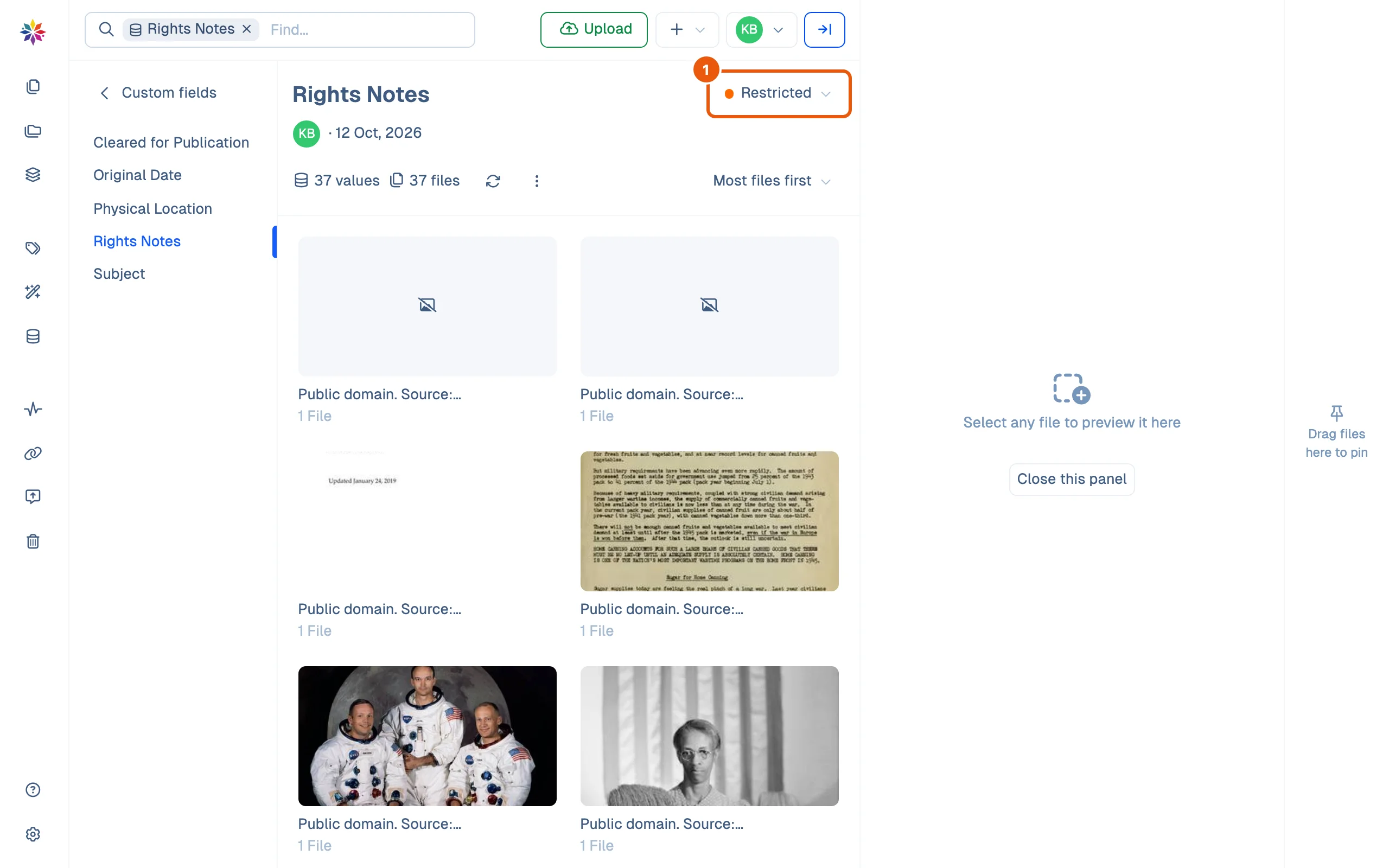
- Fill the fields in on a file’s details, or on many files at once with a batch edit. A new field’s visibility is chosen when you create it.
Check before you publish
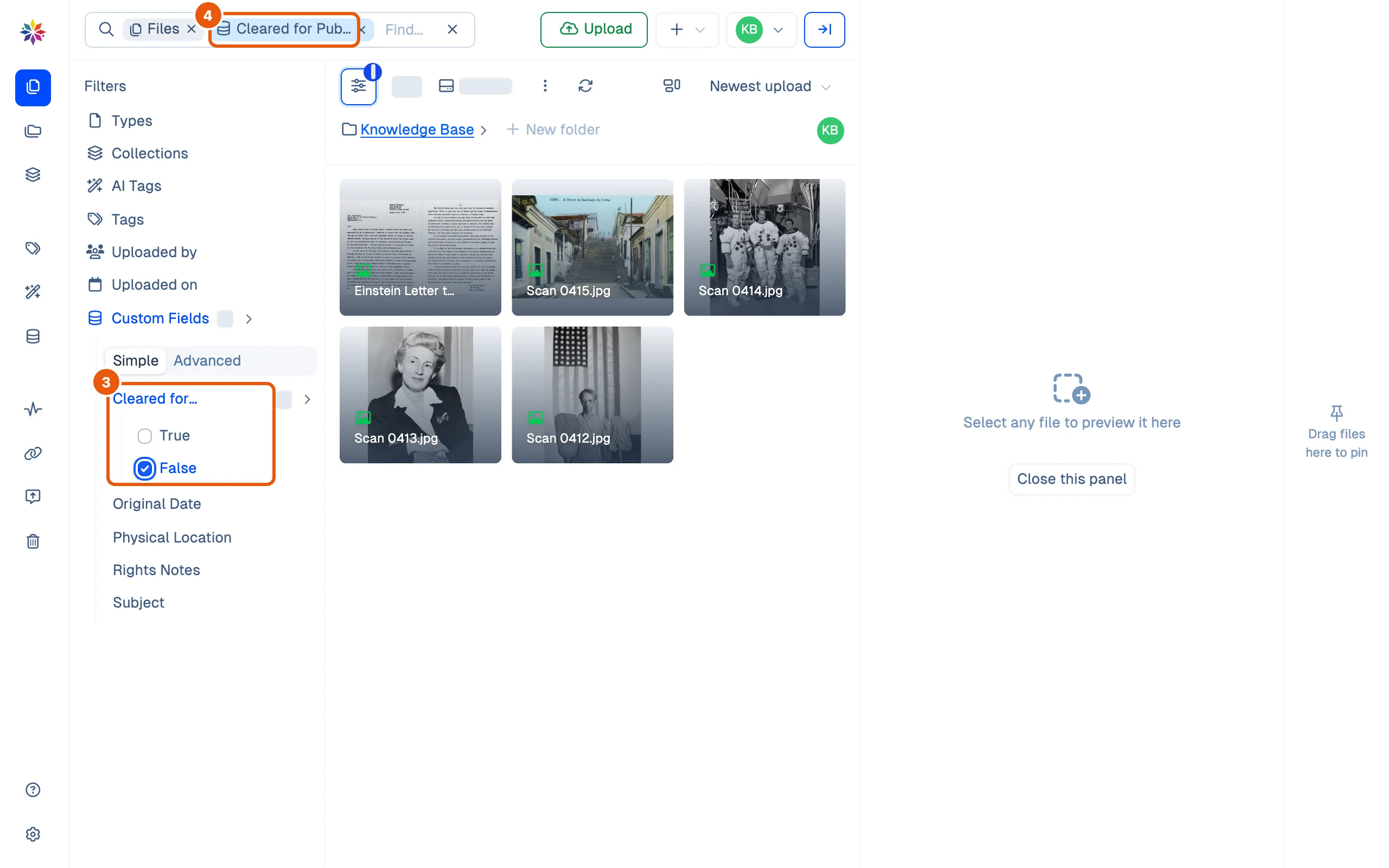
- Open Files, click Show filters (the sliders button above the files), then Custom Fields and Cleared for Publication, and tick False (or True for what is cleared).
- A chip joins the search box, Cleared for Publication: false, and only those files remain: here the letter and the four phone scans.
Good to know
- Starchive has no status or lifecycle for a file (draft, approved, published); a List field such as Status, holding your team’s terms, is the substitute (see List fields and vocabularies).
- A filter lives in the page address: copy the address to come back to the same list later. See Filters.
- Visibility here is what the app states; this page was checked as the workspace owner, who sees every field.
The three visibility levels, as the Create Custom Field dialog describes them
| Level | Who sees the field |
|---|---|
| Restricted | Only Total access members |
| Limited | All members of the workspace (the default) |
| Public | Anyone; only useful when sharing files |
Questions
Who can see a Restricted field?
The Create Custom Field dialog says only Total access members. Limited fields are seen by all members of the workspace; Public fields by anyone, which the dialog calls useful only when sharing files.