Getting started
Sign in
Get into your Starchive workspace, and out again.
Archivist Admin
Checked in Starchive on October 12, 2026
You want to open your organization’s Starchive and start working.
Steps
- Go to app.starchive.io. If you are not signed in, Starchive sends you to its sign-in page.
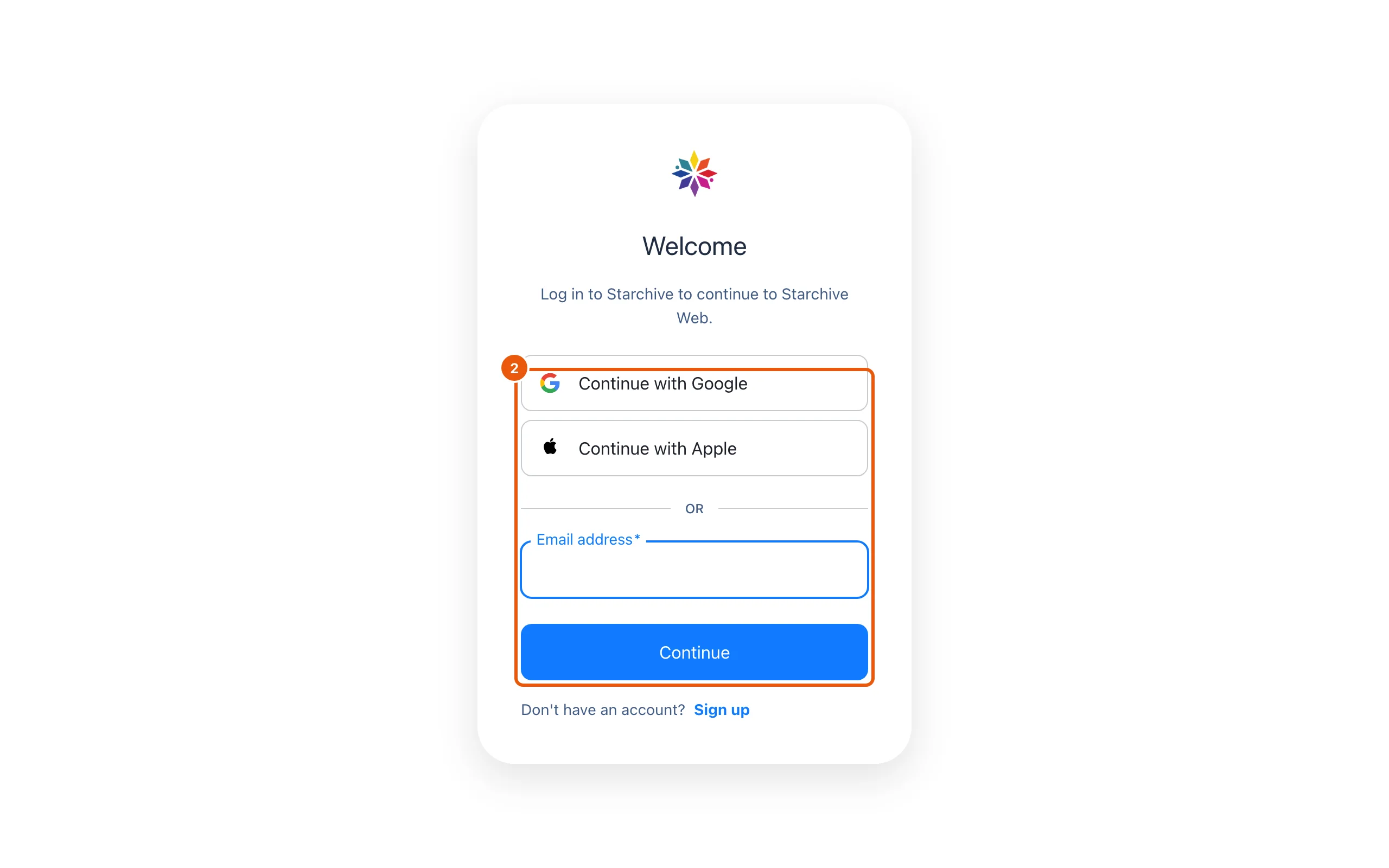
- Enter the email address your invitation was sent to and click Continue. If your account uses Google or Apple, click Continue with Google or Continue with Apple instead and follow their screens.
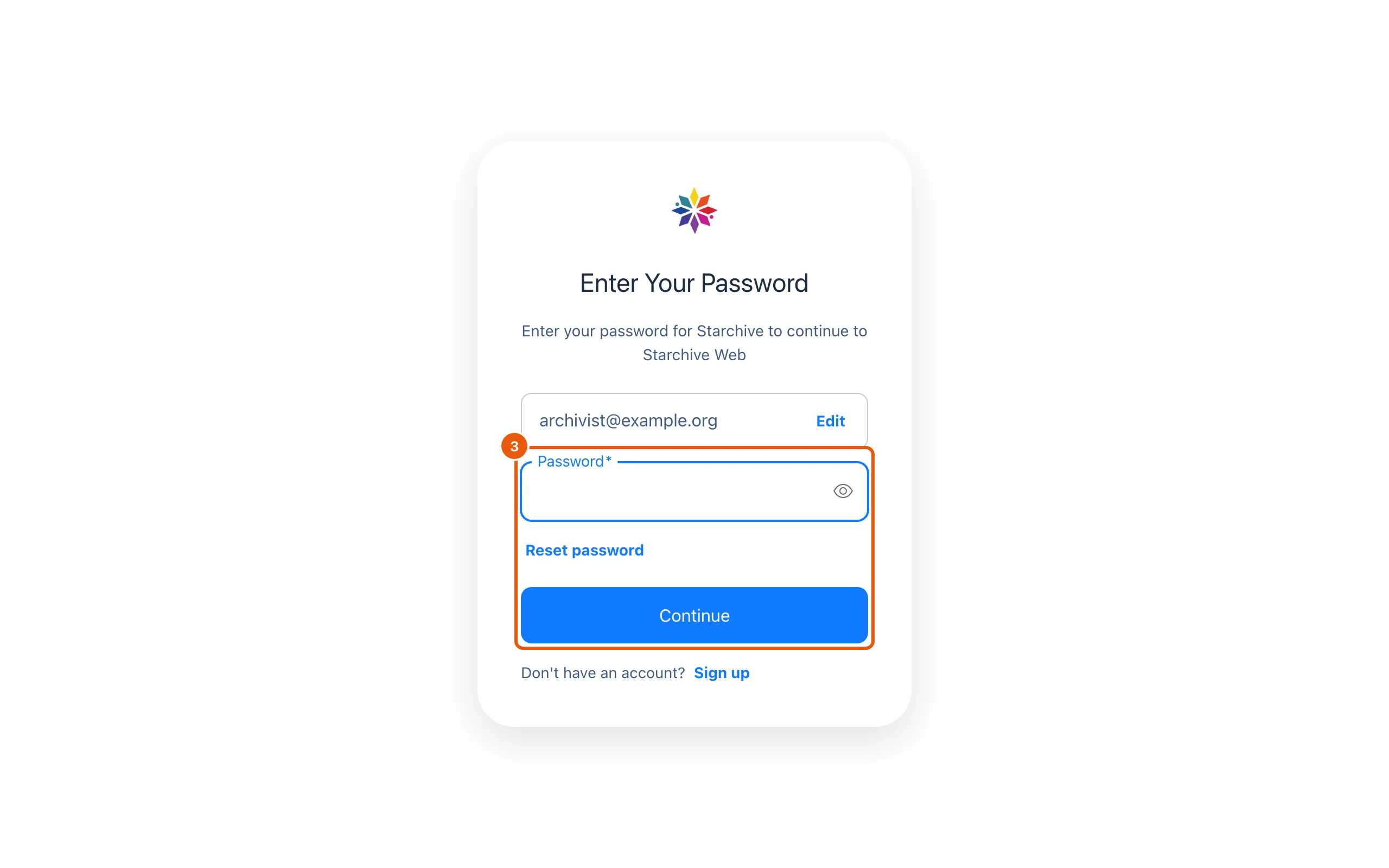
- Enter your password and click Continue. If you typed the wrong address, click Edit beside it.
- Starchive opens on Search, with everything in your workspace listed by kind. Search explains that screen.
Good to know
- Sign-in takes two pages: email first, password second. Reset password is on the second page.
- To sign out, click your initials at the top right, then Sign out. The same menu opens Settings.
- Settings → Profile holds your name, a Reset password button and the Multi-Factor Authentication switch, which adds a second step to every sign-in.
Where sign-in happens
The sign-in pages live at accounts.starchive.io, Starchive’s own sign-in service. After you sign in, it returns you to app.starchive.io.
Questions
I don't have an account. Should I click Sign up?
Ask an admin of your workspace to invite you instead (Settings → Members → Invite). The invitation is what gives you access to your organization's files.
I forgot my password.
Enter your email address, click Continue, then click Reset password on the next page. If you are still signed in somewhere, Settings → Profile → Reset password emails you a reset link.
Can I turn on two-step sign-in?
Yes. Open Settings → Profile and switch on Multi-Factor Authentication under Security.