Finding files
Filters
Narrow Files down by type, collection, tag, uploader, date or custom field.
Archivist Admin
Checked in Starchive on October 12, 2026
You want to see only the files that meet a condition: every crew portrait, every video, every file without a date.
Steps
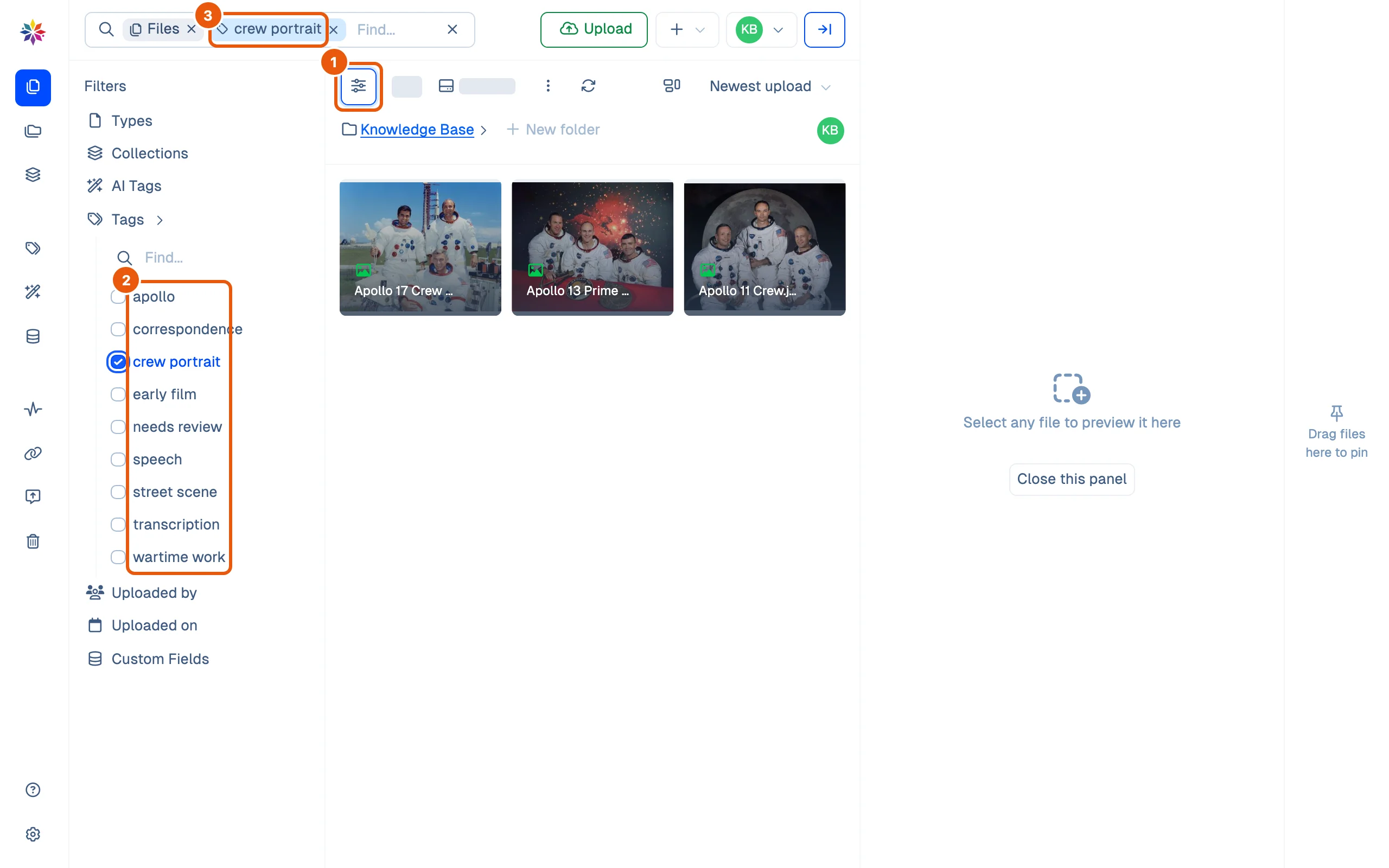
- Open Files and click the filter button, at the left of the toolbar. The Filters pane opens with its facets: Types, Collections, AI Tags, Tags, Uploaded by, Uploaded on and Custom Fields.
- Click a facet to open it, then tick the values you want. Here Tags → crew portrait leaves three photographs.
- Each filter you add also appears as a chip in the search box. The × on a chip removes that filter.
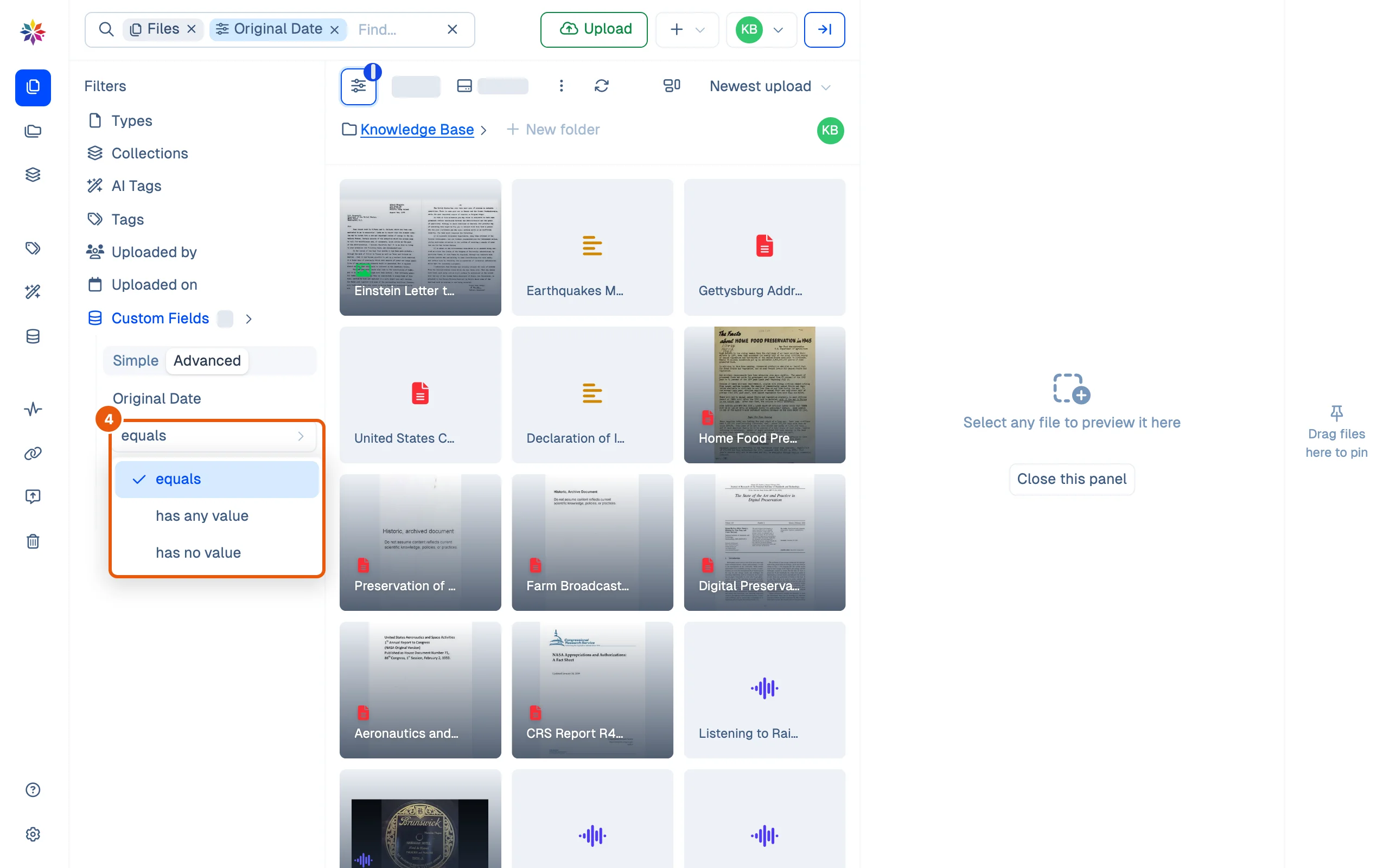
- For custom fields, open Custom Fields. Simple lists the fields; open one, such as Subject, and tick its values. Advanced builds rules: click Add filter rule, choose a field, then a condition: equals, has any value or has no value.
Good to know
- Within one facet, ticked values are alternatives: crew portrait or apollo gives 6 files. Across facets they all apply: adding Types → Video to those leaves 2.
- Filters combine with words in the search box: apollo finds 6 files, and Types → Video narrows them to 2.
- The filters are in the page address. Copy it and a colleague, or you on another computer, opens the same filtered list.
- has no value is the quickest way to find gaps in your descriptions; has any value finds what is already done.
The facets
| Facet | Filters by |
|---|---|
| Types | Image, Video, Audio, Document, Text, Other, Folder |
| Collections | The collections a file is in |
| AI Tags | Labels Starchive’s AI added |
| Tags | Your own tags |
| Uploaded by | The member who uploaded the file |
| Uploaded on | The upload date |
| Custom Fields | Field values (Simple) or rules (Advanced) |
Questions
I ticked two tags and got more files, not fewer.
Values ticked in the same facet are alternatives. To require both, add the second condition from another facet, or search for the second word.
How do I find files that still need describing?
Use an Advanced custom-field rule with "has no value". On the demo workspace, Original Date has no value on 260 of 265 files.
How do I clear the filters?
Click the × on each filter's chip in the search box, or untick it in the pane.