Administration
Members and roles
Invite people, choose what each of them can do, change it later, or deactivate a member.
You want to bring someone into your workspace and decide what they can see and do: here, a digitization lab that uploads scans and a documentary producer who needs every file.
Invite a member
- Click Settings at the bottom of the left rail, then Members, then Invite.
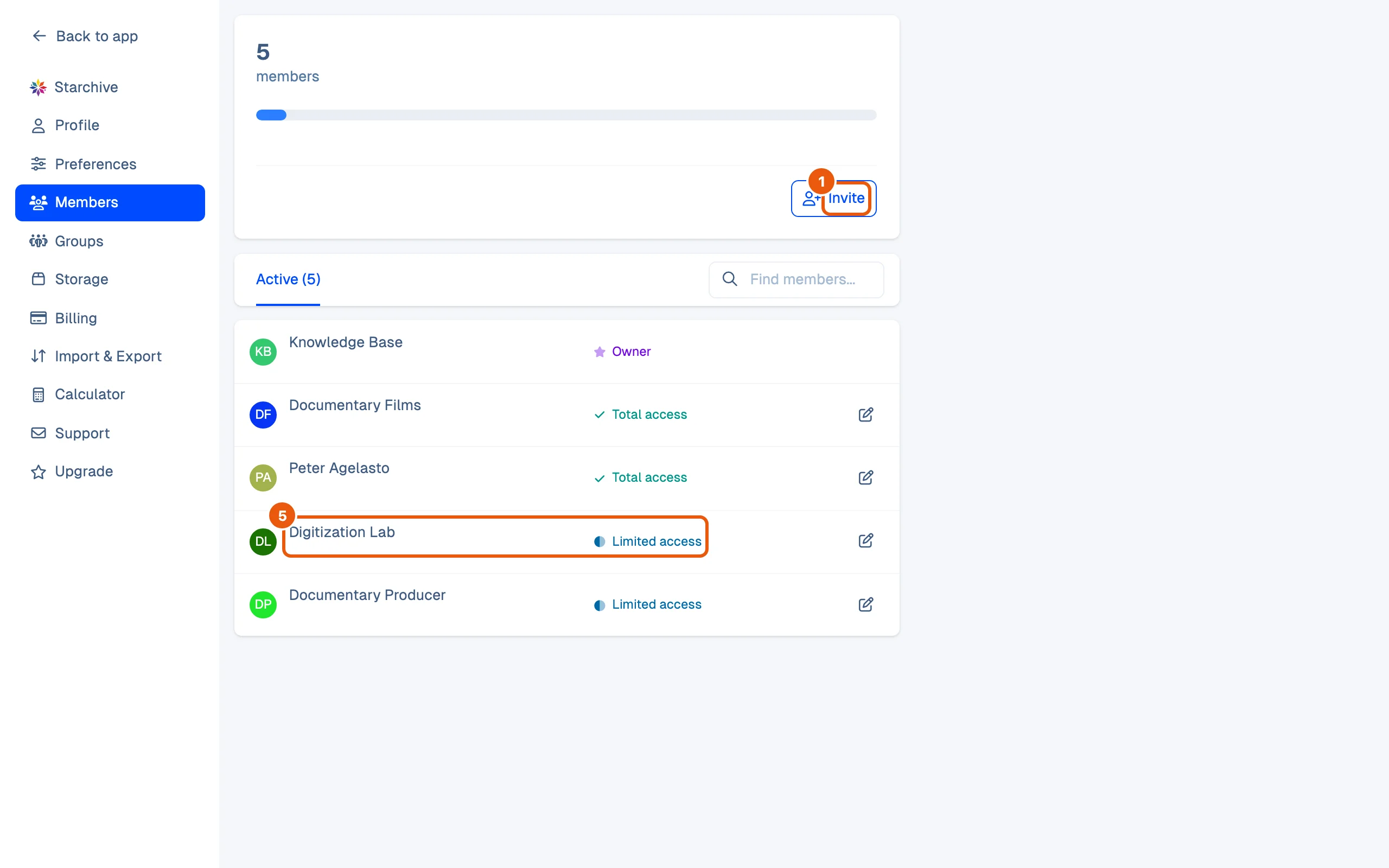
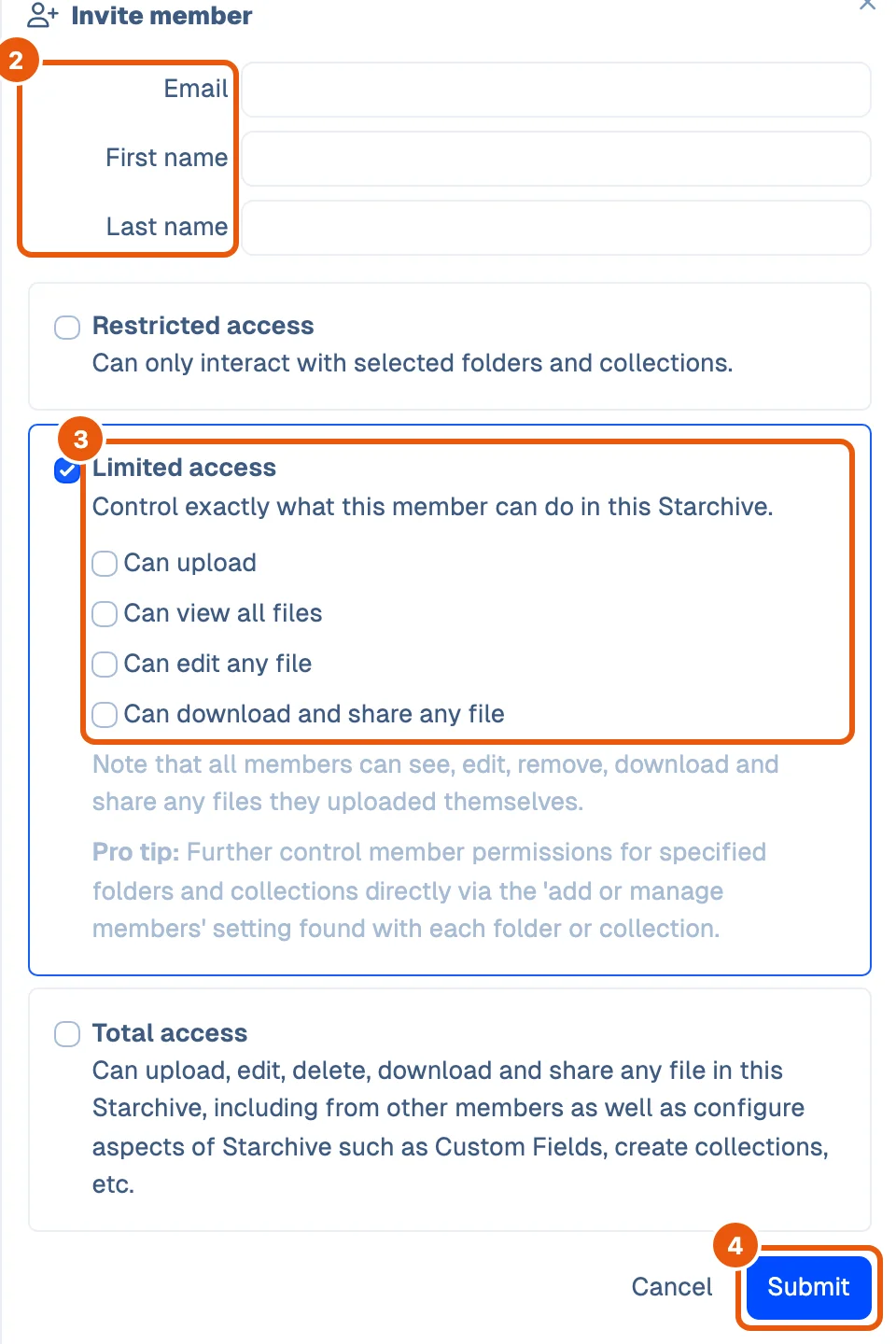
- Type the person’s Email, First name and Last name.
- Tick one access level:
- Restricted access: Can only interact with selected folders and collections. You give them folders and collections afterwards.
- Limited access: four switches appear, Can upload, Can view all files, Can edit any file and Can download and share any file. Tick the ones they need.
- Total access: everything, including setting up the workspace. A Can manage members switch appears for someone who should also invite and edit members.
- Click Submit.
Change what a member can do
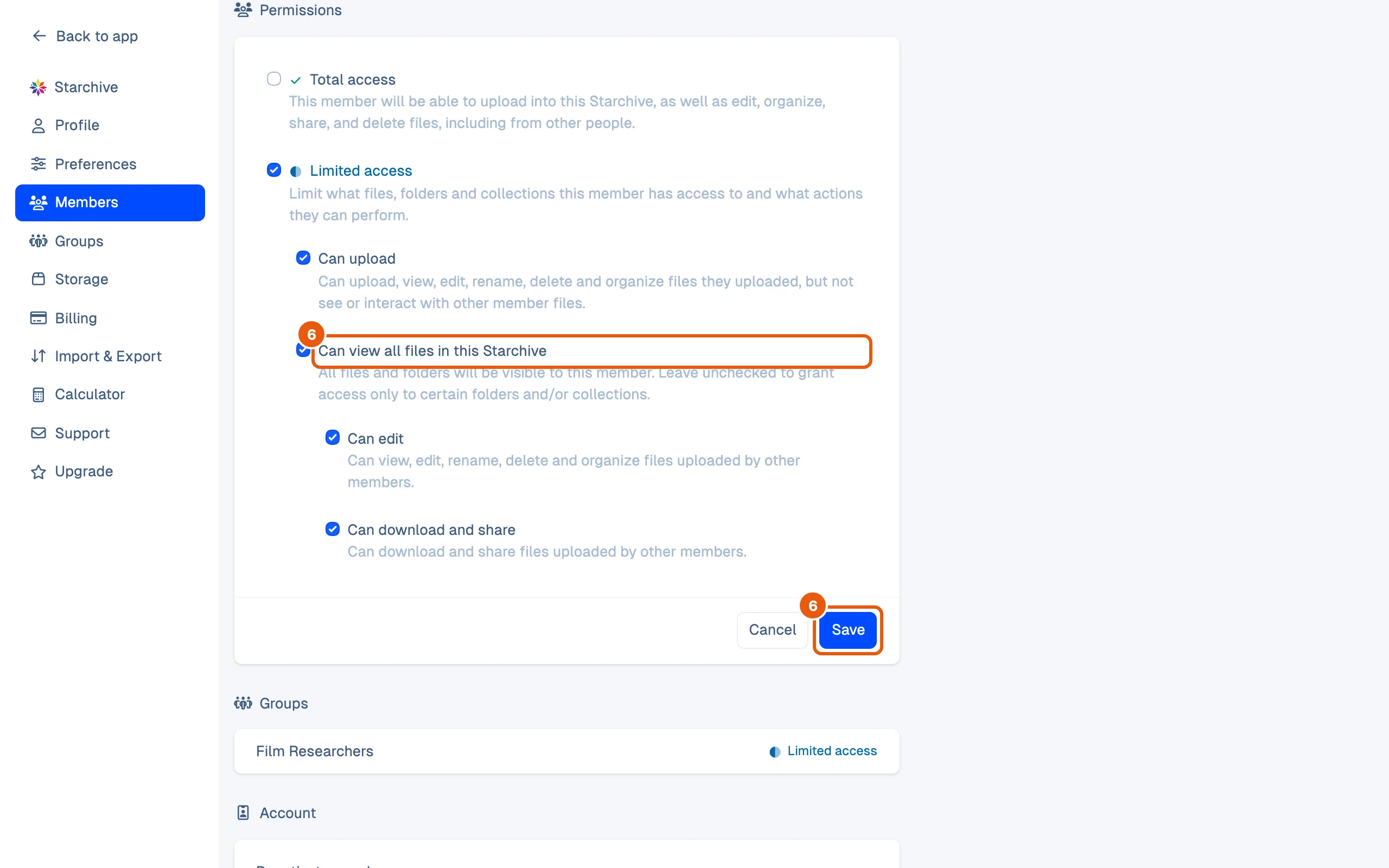
- In the list, click the pencil at the end of the member’s row. Their page opens with their Profile, Permissions, Groups and Account.
- Under Permissions, change the ticks and click the Save below them.
Deactivate a member
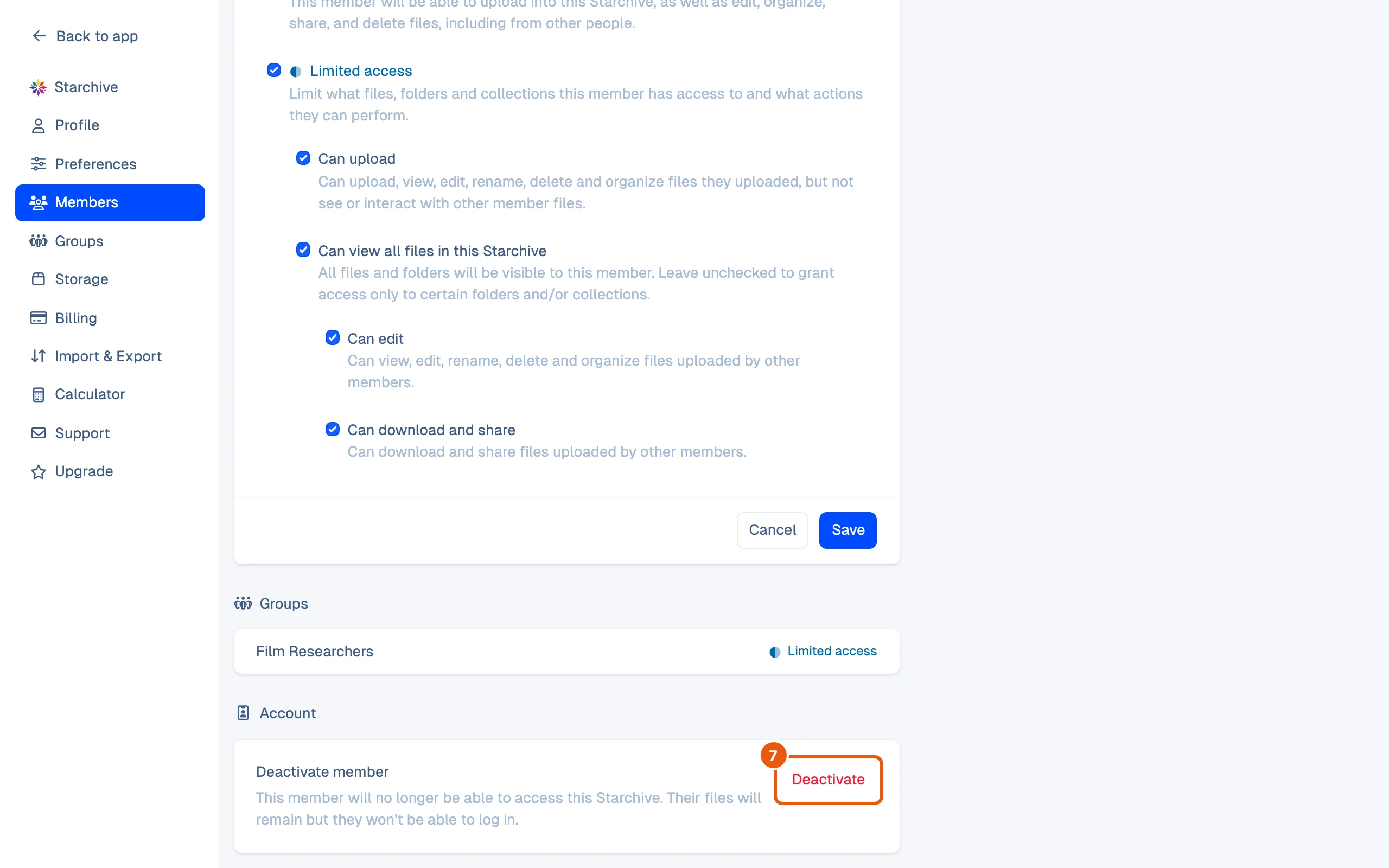
- At the bottom of the member’s page, under Account, click Deactivate. This member will no longer be able to access this Starchive. Their files will remain but they won’t be able to log in.
What a member sees
Signed in as each member, this is what the workspace looked like:
| Member | Access | What they saw |
|---|---|---|
| Digitization Lab | Limited: Can upload | No files, folders or collections at all, only their own uploads (none yet). Tag and AI tag names are listed, each with 0 files. |
| Documentary Producer | Limited: all four switches | Every file and folder, but no collections, and no Restricted custom field anywhere. |
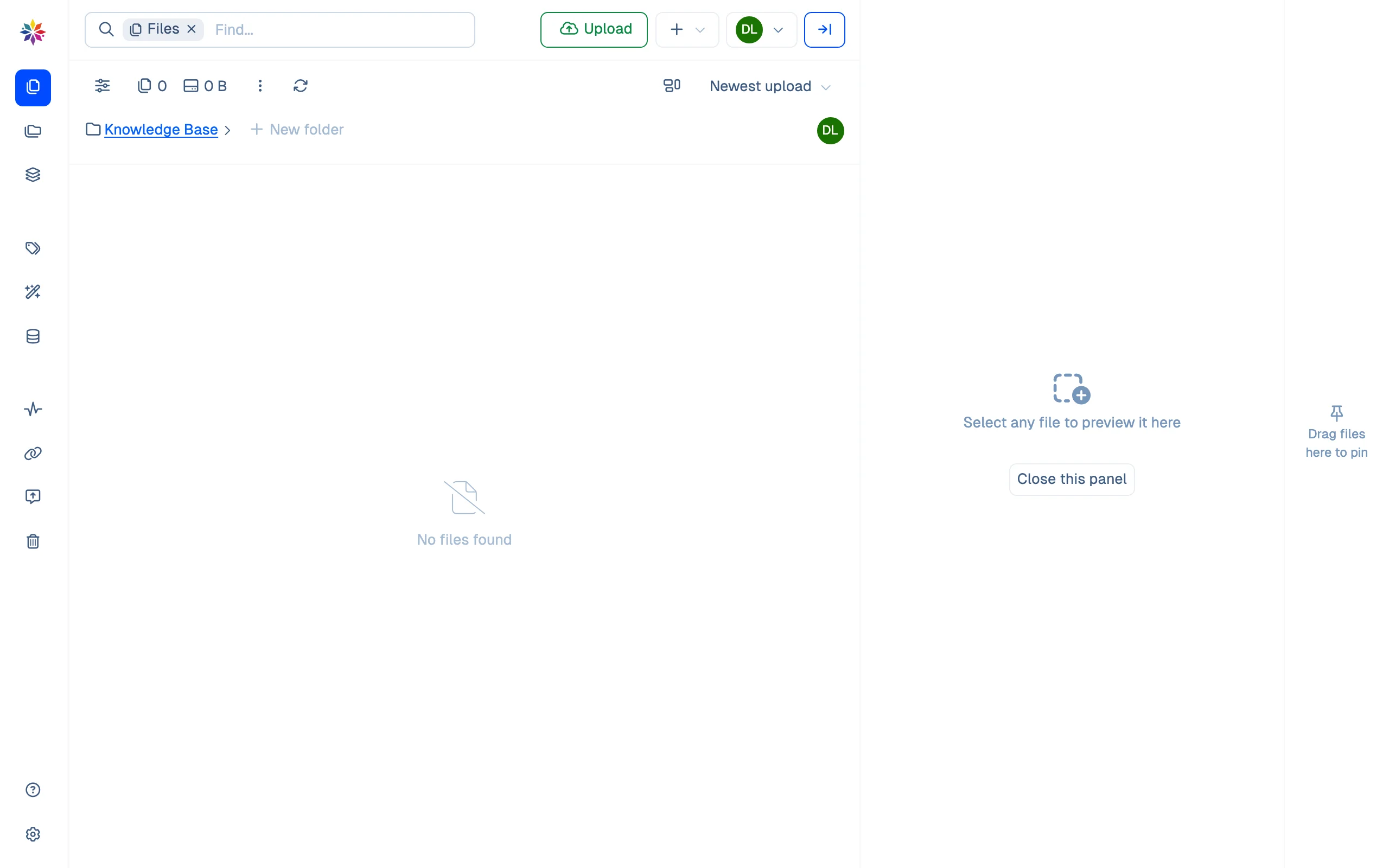
In both, Settings offers only Profile, Preferences, Calculator and Support: no Members, Groups or Import & Export.
Good to know
- Invite offers three levels; a member’s page offers Total access and Limited access only. A Limited member without Can view all files is the Restricted case: Leave unchecked to grant access only to certain folders and/or collections.
- On a member’s page, Can edit and Can download and share sit under Can view all files and only appear when it is ticked. Unticking Can view all files clears them too.
- The Owner has no pencil: the owner’s access cannot be changed here.
- Find members… above the list searches by name.
- Whatever their level, everyone can see, edit, remove, download and share the files they uploaded themselves.
- To give a member a folder or a collection, use the + beside the avatars on that folder or collection; see Collections. To give several members the same access at once, use a group.
- Custom fields set to Restricted are hidden from everyone below Total access; see Custom field visibility.
How this page was checked
The workspace’s members were invited and had accepted before the walk; the Invite drawer was filled in up to Submit and not sent. On Digitization Lab’s page, Can view all files was ticked and saved, the member’s Files screen was reloaded (every file appeared), and the tick was taken off again. Deactivate was not pressed. What a member sees comes from signing in as each member.
Questions
When does a change to a member's permissions take effect?
On the member's next page load. After Can view all files was ticked and saved, the member's Files screen showed every file as soon as it was reloaded.
A member can see every file but no collections. Why?
Collections are given to members one by one, from the collection's own Members dialog. Can view all files covers files and folders, not collections. See [Collections](/guide/work/collections).
Does deactivating a member delete their files?
No. As the page says, their files remain, but they can no longer sign in to the workspace.