Housekeeping
Delete and recover files
Move files to the Trash, find them there, put them back, or delete them for good.
A file is in the wrong place twice, or not wanted at all: move it to the Trash. Until it is deleted permanently, you can put it back exactly where it was.
Move a file to the Trash
- Right-click the file (or one of several selected files) and choose Move to Trash.
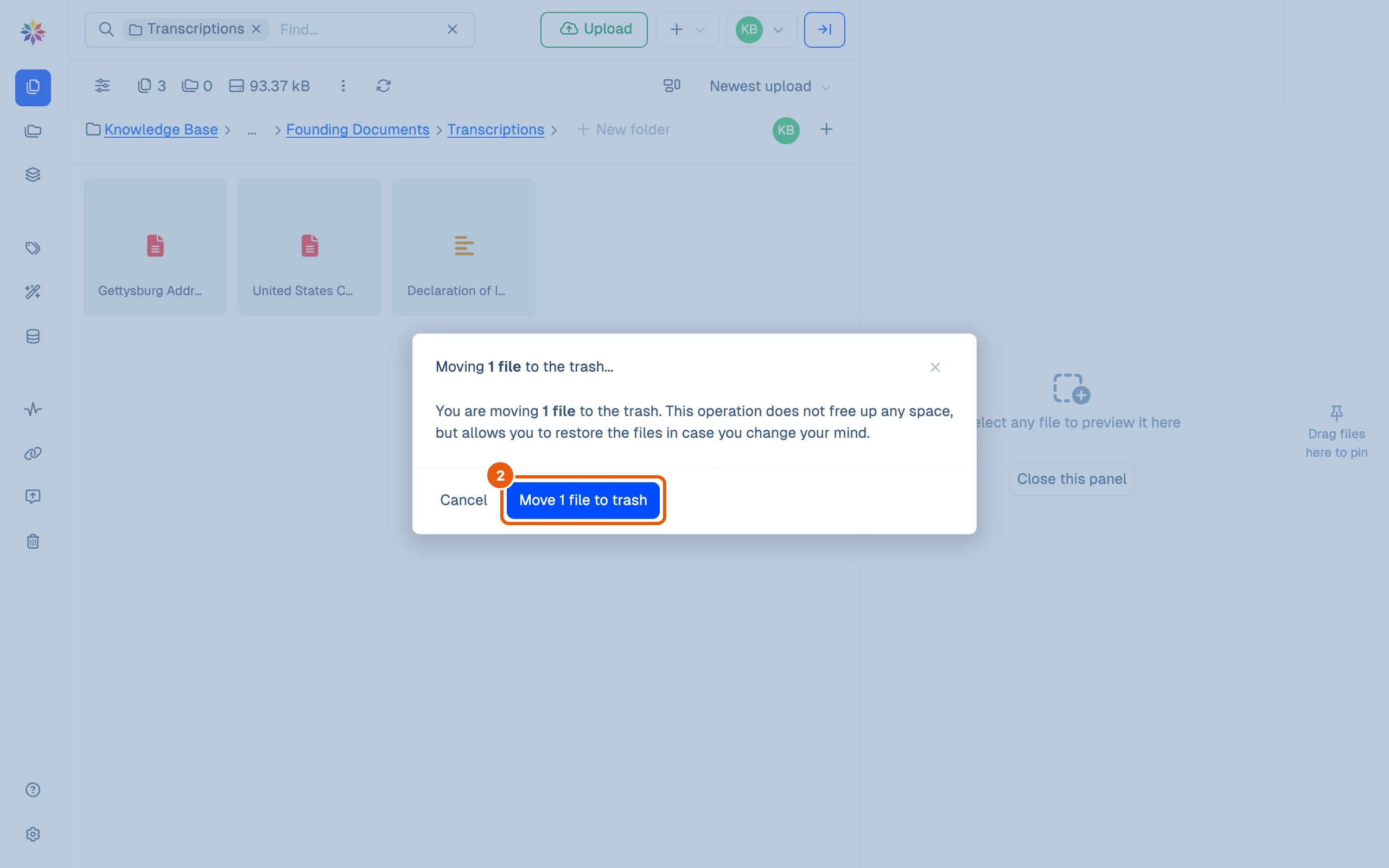
- The dialog explains that this does not free up any space, but allows you to restore the files in case you change your mind. Click Move 1 file to trash. A message confirms it, 1 file moved to the trash, and the file leaves its folder.
Find it in the Trash
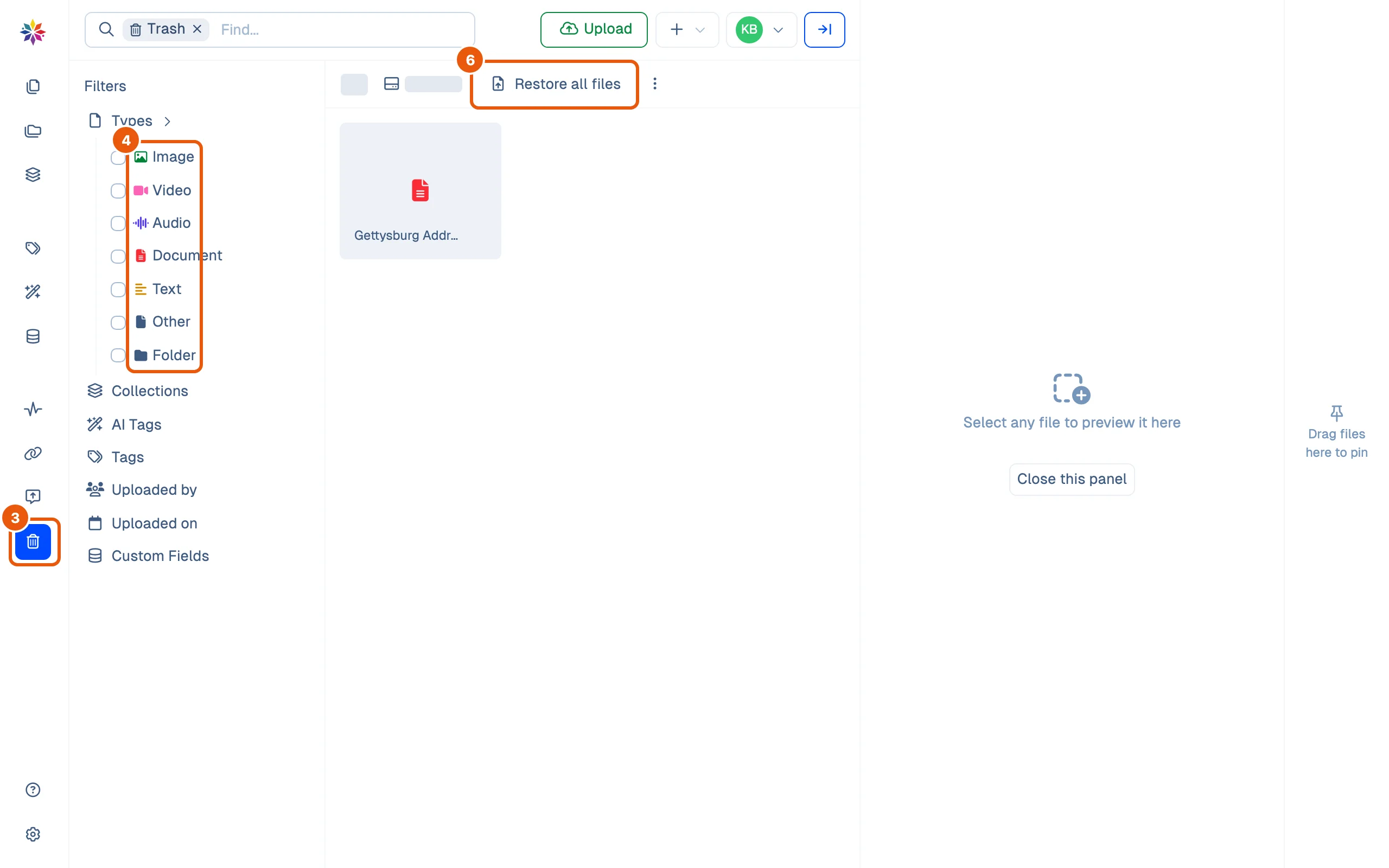
- Click Trash, the bin at the bottom of the left rail’s middle group.
- Narrow the list with the filters on the left: Types (Image, Video, Audio, Document, Text, Other, Folder), Collections, AI Tags, Tags, Uploaded by, Uploaded on (After and Before dates) and Custom Fields. A filter stays in the page’s address, so a link keeps it.
Put it back
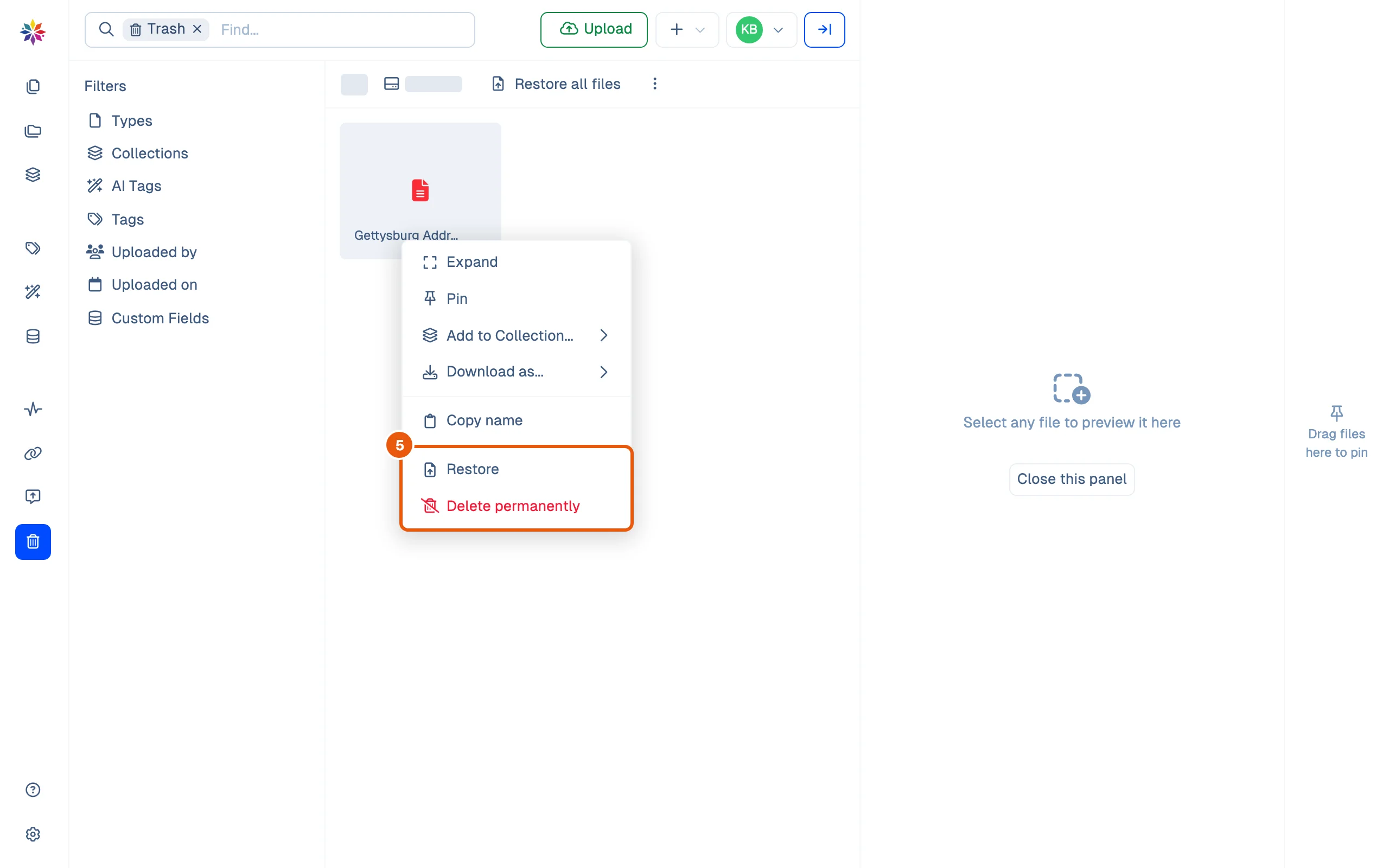
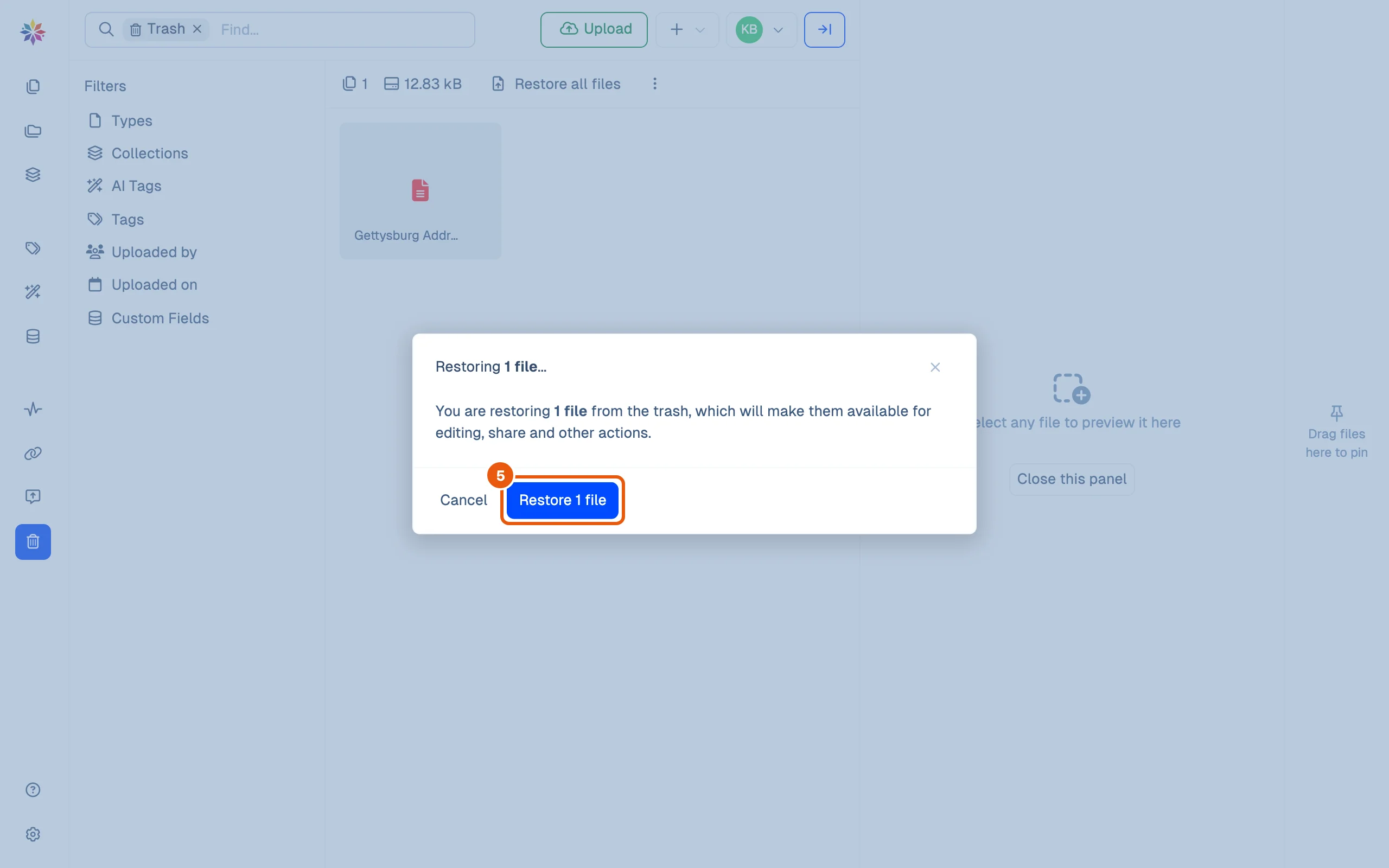
- Right-click the file and choose Restore, then Restore 1 file. A message confirms it, 1 file restored successfully, and the file is back in its folder.
- To put everything back at once, click Restore all files above the list, then Restore all.
Delete it for good
- Right-click the file in the Trash and choose Delete permanently. The dialog says how much space this frees and warns: This action is irreversible—proceed with caution. Click Permanently delete 1 file only when you are sure.
Good to know
- There is no Undo in the message after Move to Trash: open the Trash and use Restore.
- A trashed file’s menu also offers Expand, Pin, Add to Collection…, Download as… and Copy name, and its details pane still shows its folder path, tags and custom fields.
- A list of everything in the Trash can be exported to a CSV file from Settings → Import & Export → Export trash; see Import and export.
This page's files
Declaration of Independence.txt was moved to the Trash from Papers › Founding Documents › Transcriptions and restored: it came back to the same folder with its tag and field values. The Trash in the screenshots holds Gettysburg Address (1).docx, a second copy of a transcription uploaded and trashed for this guide; it stays there. Delete permanently and Restore all were opened and cancelled, not carried out.
Questions
Does moving files to the Trash free up space?
No. As the dialog says, a file in the Trash still takes its space; only Delete permanently frees it.
Where does a restored file go?
Back into the folder it was trashed from, with its tags and custom field values.
Can I undo Delete permanently?
No. The dialog warns that it is irreversible.