Adding files
Upload files
Get files from your computer into the right folder, and check them before anything is sent.
You have scans, photos or documents on your computer and want them in Starchive, in the folder where they belong.
Steps
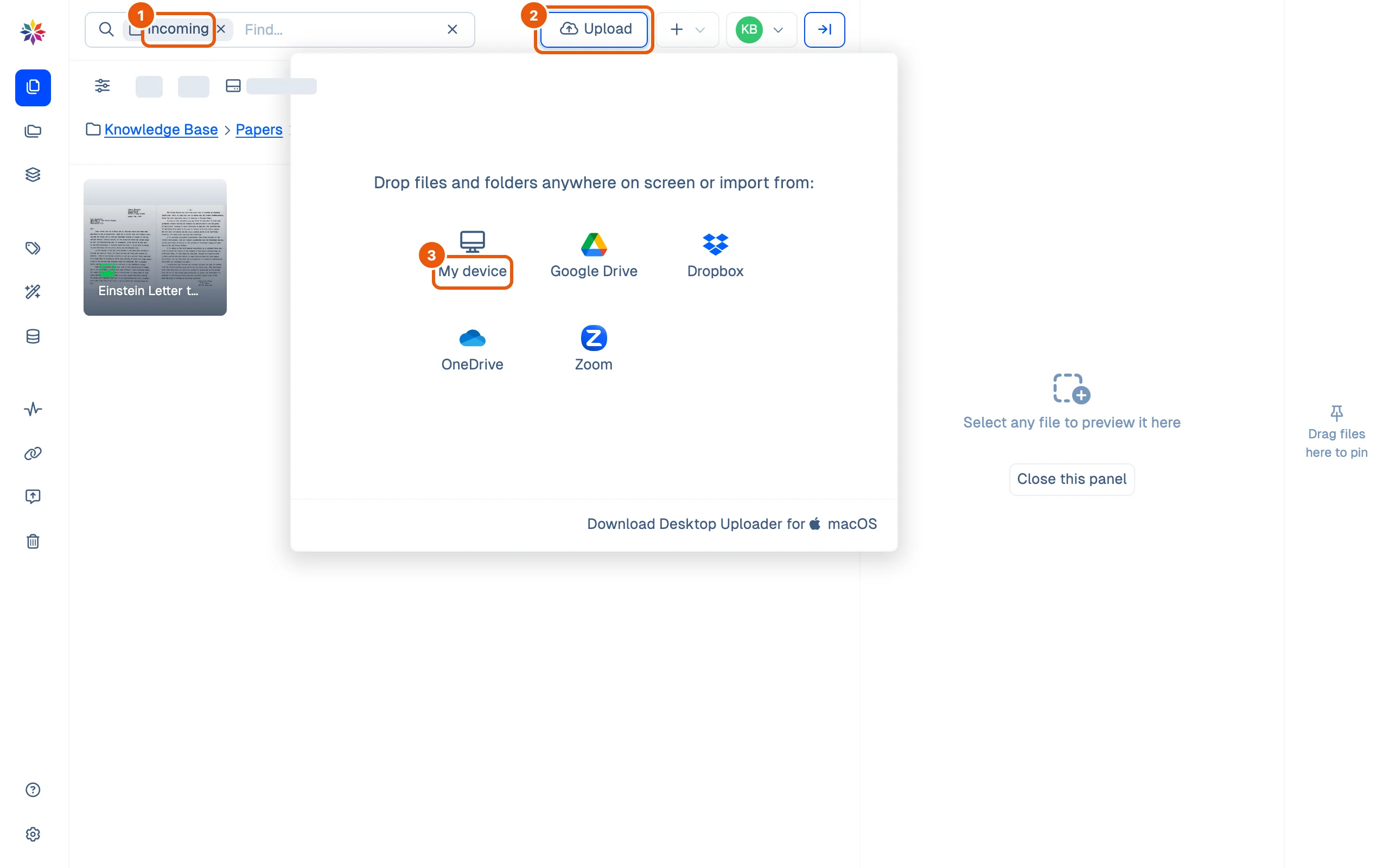
- Open the folder the files belong in. Here it is Papers › Incoming; the search box shows it as the current scope.
- Click Upload at the top of the screen.
- Choose My device and pick one or more files in your computer’s file picker.
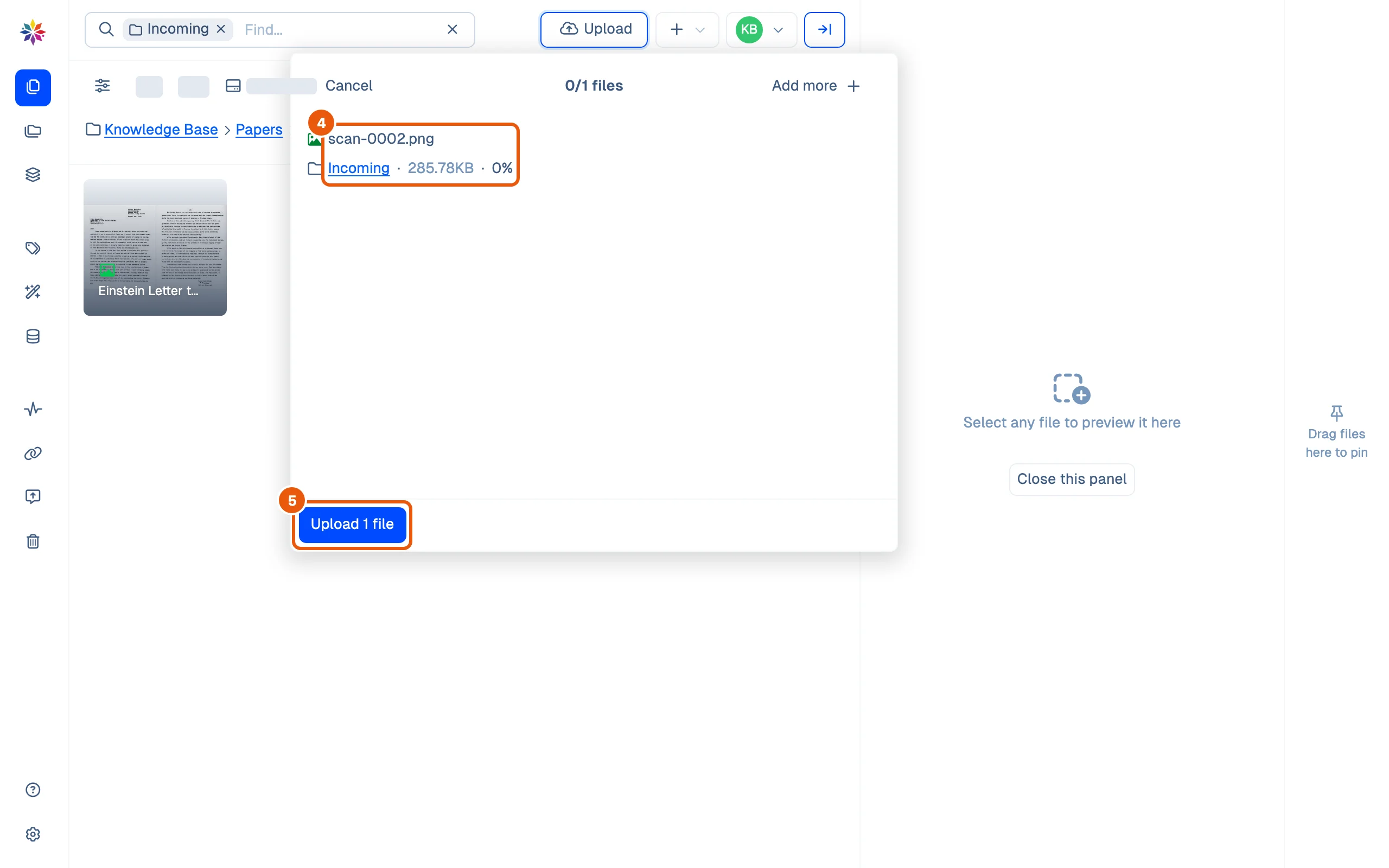
- Check the list Starchive shows before it sends anything: each file’s name, the folder it is going to and its size. Add more brings up the picker again; Cancel drops the lot.
- Click Upload 1 file (the button counts your files). Each file shows Processing… and then a tick, the top reads All uploaded, and a message offers View. Click Done.
Good to know
- The Upload menu also offers Google Drive, Dropbox, OneDrive and Zoom, and a Desktop Uploader for macOS. It also says you can drop files and folders anywhere on the screen. This page walks through My device.
- A file keeps the name it had on your computer: scan-0001.png arrives as scan-0001.png. Rename it before you upload, or afterwards; see Name your files.
- A folder can fill in fields for every file uploaded into it. See Flows.
- What Starchive adds on its own once a file is in is on What happens after you upload.
Upload settings in Preferences
Settings › Preferences › Upload has two settings:
| Setting | What it does |
|---|---|
| Skip upload confirmation | Off by default. Turned on, files begin uploading as soon as you pick them, without the list in step 4. |
| Files to exclude | File name patterns to leave out of an upload, one per line, for example .DS_Store or *.tmp. Marked experimental. The box is empty by default: the patterns you see in it are only examples, and nothing is excluded until you type your own and click Save. |
Both are kept by the browser you set them in, not by your account.
Questions
Where do my files go?
Into the folder you have open when you click Upload. The list before the upload names that folder under every file; check it there, because once a file is uploaded, moving it is a separate step.
Can I stop an upload I started by mistake?
Yes, before you click Upload. Cancel closes the list and nothing is sent. Once the files are sent, move the ones you did not want to the Trash.
Will Starchive warn me if I upload a file that is already there?
No. A file with the same name in the same folder is not flagged. See [Avoid duplicates](/guide/add/avoid-duplicates).
Can I skip the list and upload straight away?
Yes. Settings, Preferences, Skip upload confirmation. Like your other preferences, it is kept by this browser only.