Adding files
What happens after you upload
What Starchive works out about a file on its own, how long it takes, and where to see it.
You uploaded a file and want to know what Starchive did with it: which details it filled in by itself and which are still yours to add.
Steps
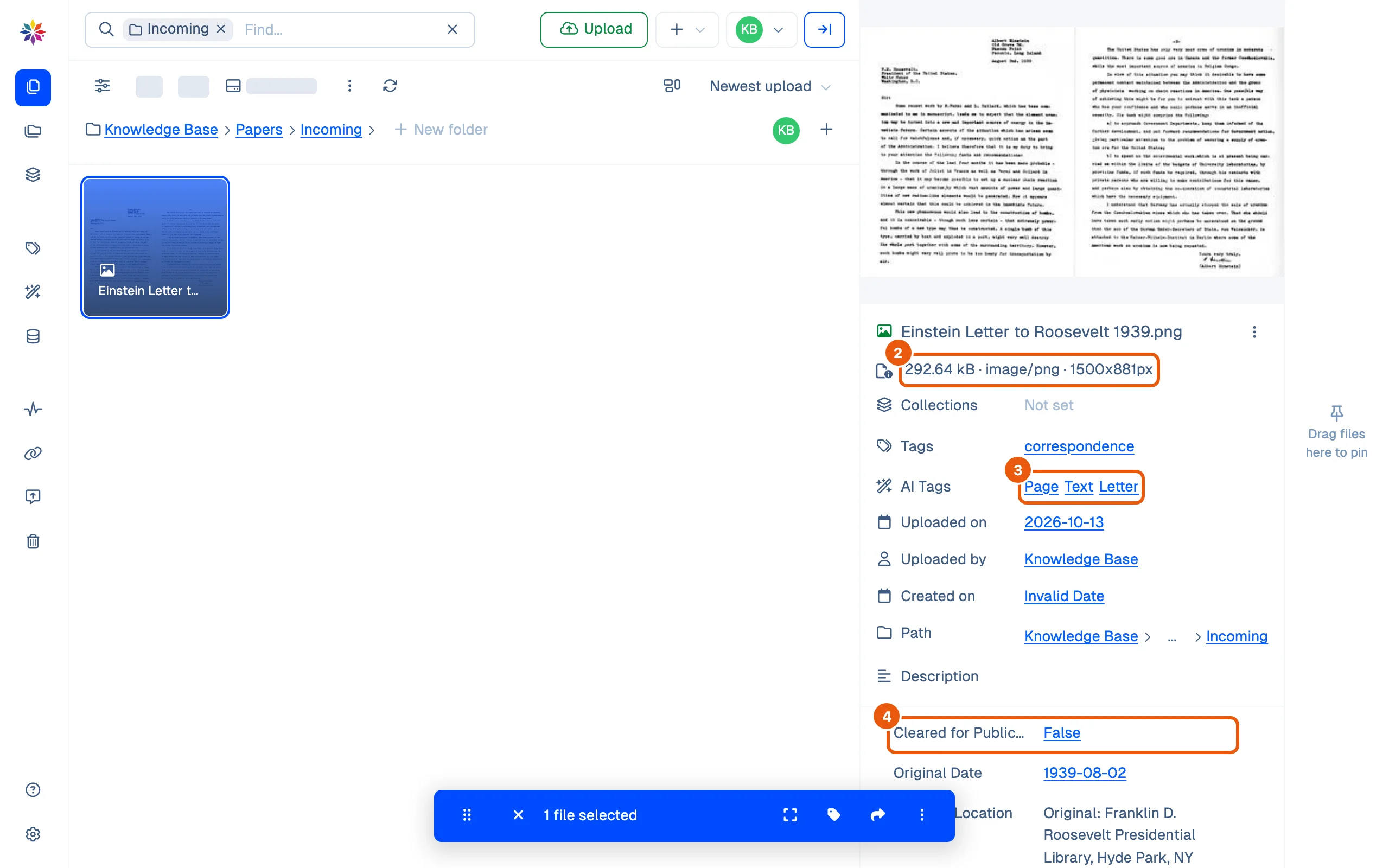
- Wait for the upload list to show All uploaded. The letter here, a 290 kB scan, took about ten seconds.
- Click the file. The details on the right open with its size, type and, for a picture, its size in pixels: 1500x881px.
- Look at AI Tags. Starchive labels what it sees in a picture; the letter got Page, Text and Letter within a minute.
- Look at the fields. Cleared for Publication already reads False: the Incoming folder has a flow that sets it on every upload. Everything else reads Not set until you fill it in.
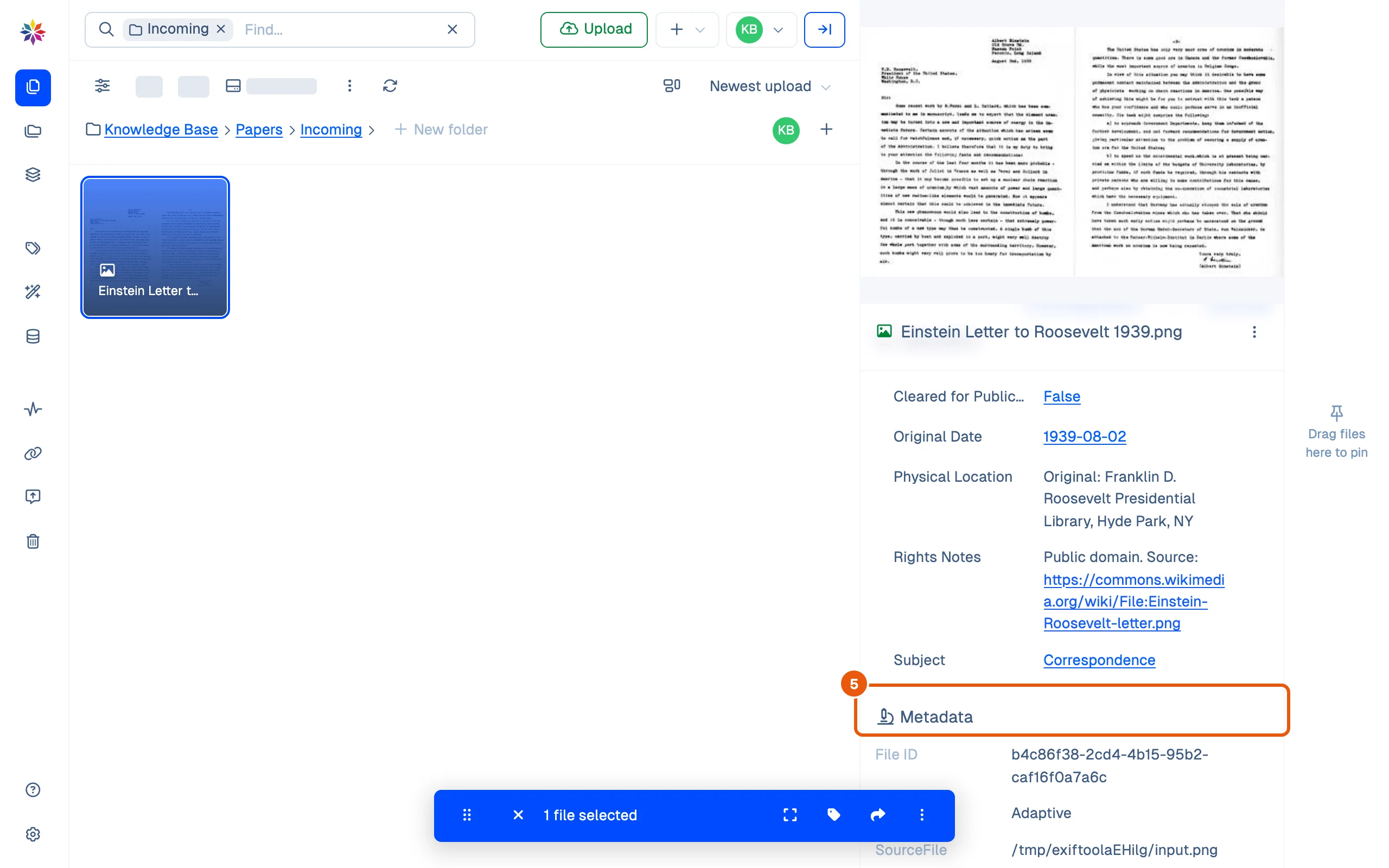
- Scroll down to Metadata. It lists everything stored inside the file, as the ExifTool program reads it: the file ID, format, dimensions and, for a camera photo, the camera’s own details. It fills in a moment after the rest.
Good to know
- Uploaded on and Uploaded by are the day you uploaded and who did it. Created on is the file’s own date, if it has one.
- Path is the folder the file sits in.
- Starchive shows photos the right way up even when a phone stored them sideways, so the picture you see may be turned compared with the file itself.
- Nothing else is filled in for you. Tags, a description and your custom fields are yours to add: Tags and fields.
The details pane, row by row
| Row | Where it comes from |
|---|---|
| Size · type · pixels | The file |
| Collections | Collections you add it to |
| Tags | Your tags |
| AI Tags | Added by Starchive after upload |
| Uploaded on, Uploaded by | The upload |
| Created on | The file’s own date, if it carries one |
| Path | The folder it is in |
| Description | Yours to write |
| One row per custom field | Yours, or set by a flow on upload |
| Metadata | Everything stored inside the file |
Questions
Why does my file say "Processing…"?
Starchive is still reading it. A 290 kB scan took about ten seconds; bigger files and video take longer. You can keep working meanwhile.
Why does Created on say "Invalid Date"?
Created on is the file's own date, read from inside the file. A file that carries none, like this scanned PNG, shows Invalid Date. Record the date you know in a field such as Original Date instead.
Are the AI tags reliable?
They are Starchive's guesses, kept apart from your own tags, and they can be wrong; the Apollo 15 crew portrait on this workspace is tagged with a footballer's name. Use your own tags and fields for anything people rely on.