Sharing
Share settings
Choose whether a share link allows downloads, adds a watermark or asks for a password, change it later, or share a file with members only.
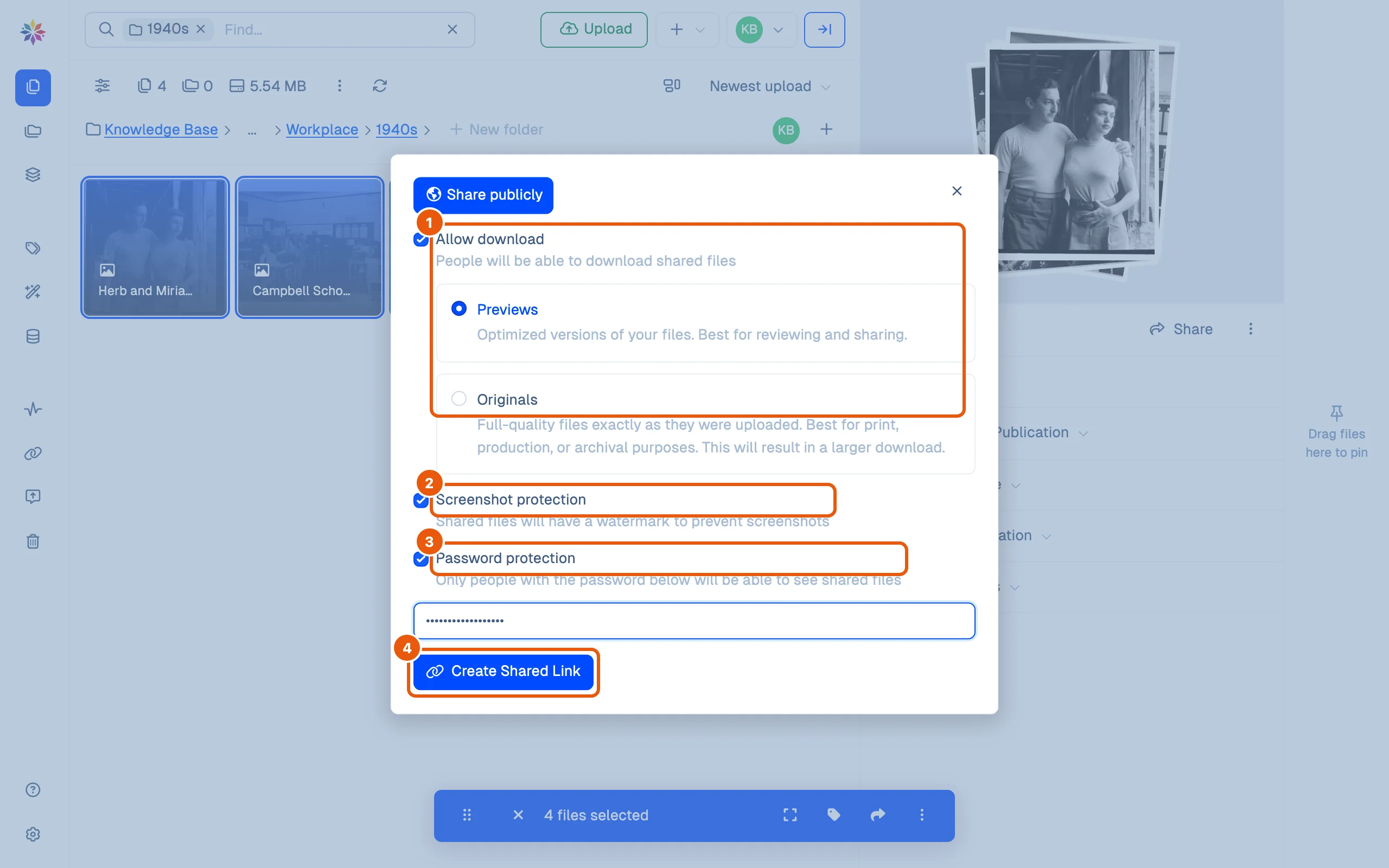
Before you create a link, decide what the person may do with the files. Here, four photographs go to an exhibit designer: they may look, with a watermark, behind a password, and they may not download.
When you create the link
In the Share publicly dialog (see Share a link), every setting starts unticked.
- Allow download: people can download the files. Choose Previews (smaller copies, best for reviewing and sharing; the default) or Originals (the files exactly as they were uploaded; a larger download).
- Screenshot protection: a repeated starchive watermark is laid over every file and thumbnail on the link’s page.
- Password protection: a box opens; type the password. Without it, nobody sees the files.
- Click Create Shared Link.
Change a link later
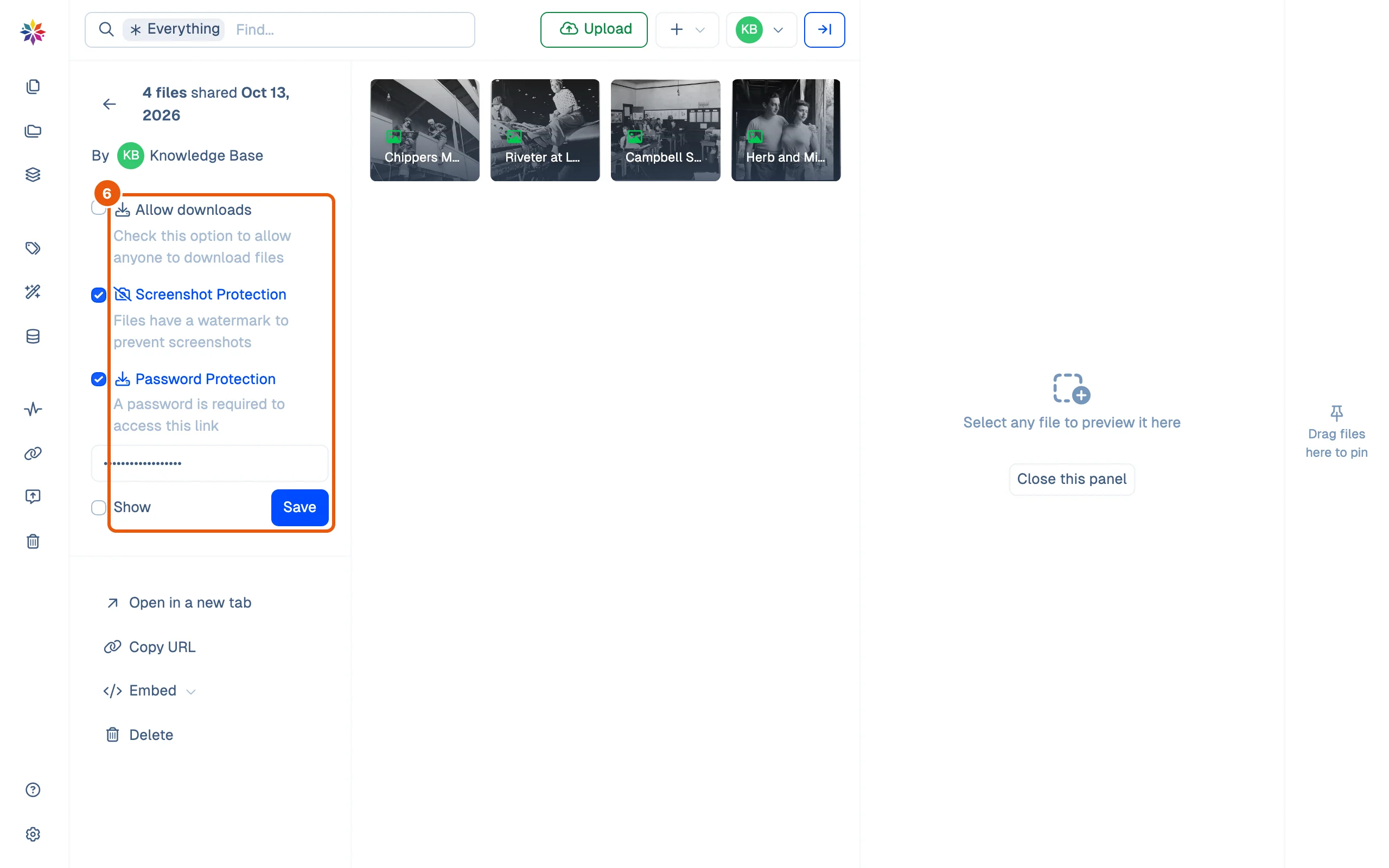
- In the left rail, click Shared Links, then click the link.
- Tick or untick Allow downloads, Screenshot Protection or Password Protection. A tick takes effect as soon as you click it, with no Save. To change the password, type the new one and click Save.
Share internally
For a colleague who is a member of your workspace, send the file’s own Starchive address instead of a share link.
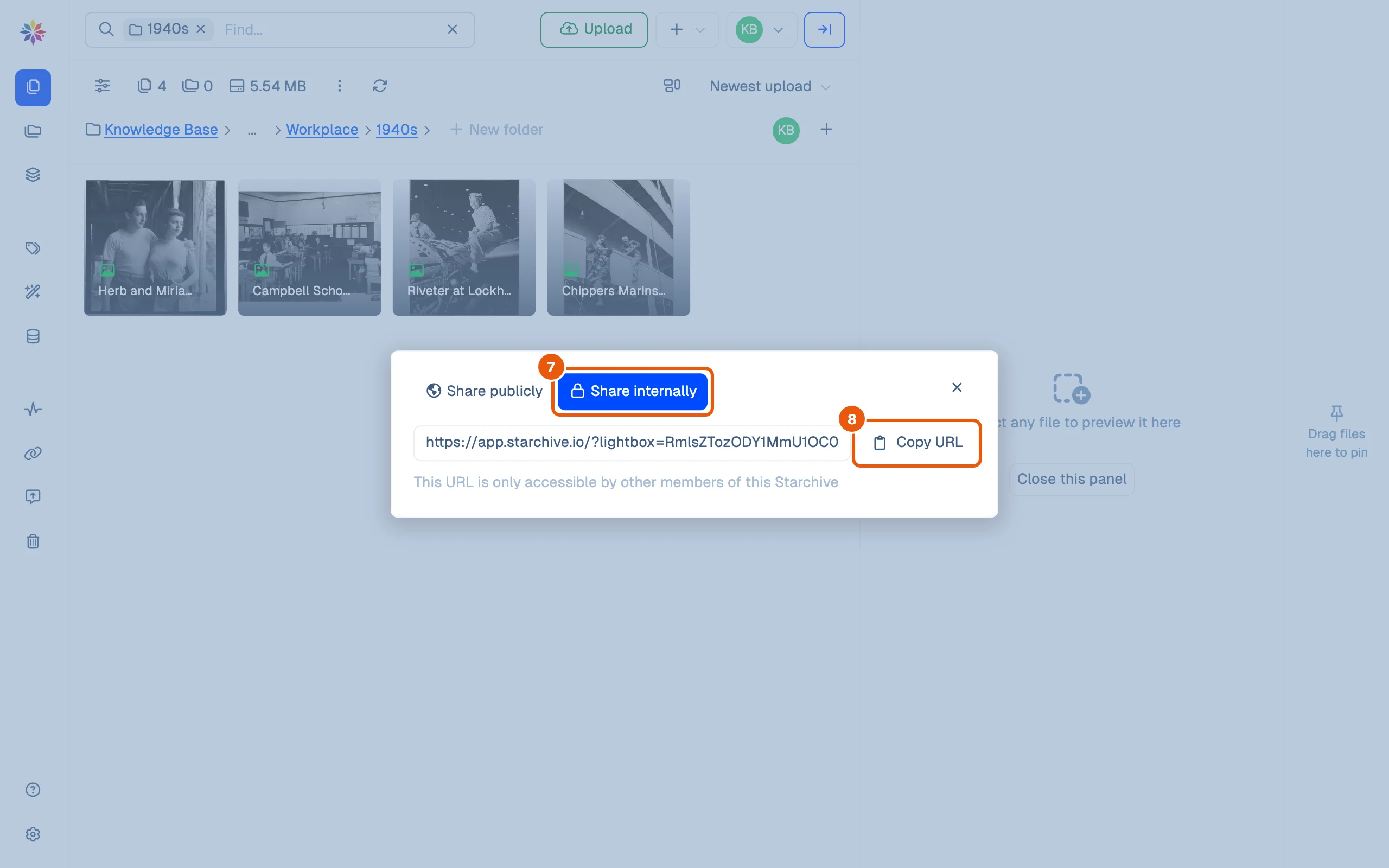
- Right-click one file, click Share, then the Share internally tab.
- Click Copy URL. The address opens the file in Starchive, and, as the dialog says, it works only for members of your workspace.
Good to know
- Share internally appears only when one file is selected. With several files, the dialog offers Share publicly alone.
- The Previews or Originals choice is made when you create the link. A link’s page has the Allow downloads tick but not that choice, so to change it, create a new link.
- A watermark discourages screenshots; it does not prevent them.
- Custom fields set to Public show under each file on the link’s page, for example an Original Date. Limited and Restricted fields stay inside Starchive. Visibility is set when the field is created; see Fields and tags.
What each setting does on the other side
| Setting | What the person who opens the link sees |
|---|---|
| Nothing ticked | The files, to look at; no download buttons |
| Allow download, Previews | Download this file and Download all files; they receive the smaller previews under the files’ own names; see Download from a shared link |
| Screenshot protection | A starchive watermark across every file and thumbnail |
| Password protection | A padlock page asking for the password before anything else; see Password-protected links |
Questions
Should I share previews or originals?
Previews for someone who needs to look, review or lay out a page; originals for print, production or an archival copy. Originals are larger downloads. See [Preview and original](/guide/work/preview-and-original).
Does Starchive send the password to the person?
No. You send it yourself, preferably by a different route from the link (the link by email, the password by phone or text).
Which of a file's details does the person see?
Only custom fields set to **Public** visibility appear on the link's page. Limited and Restricted fields do not.