Adding files
Tags and fields
Describe files with tags and custom fields, one at a time or in a batch, and create a new field.
You want files to carry what people search and filter by: a theme, a date, whether a file is cleared for use, where the original is kept.
Steps
- Right-click the file and choose Tag. A drawer opens, Tagging 1 file…, with Tag and one row per custom field.
- Click Tag and type into Find or add…. Pick an existing tag from the list.
- If no tag of that name exists, Create ”…” appears; click it to make the tag and add it in one go. Click Done when you have finished.
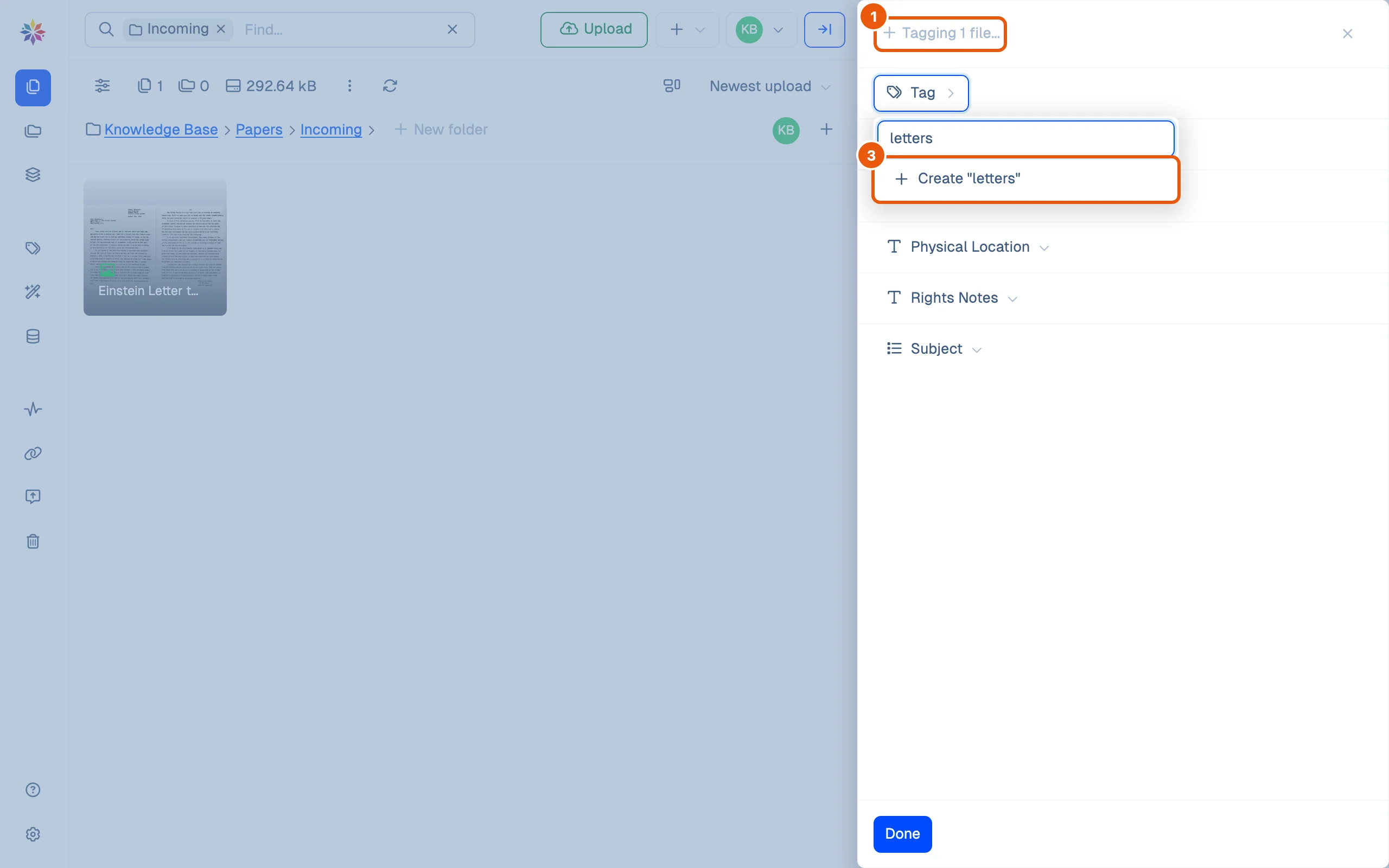
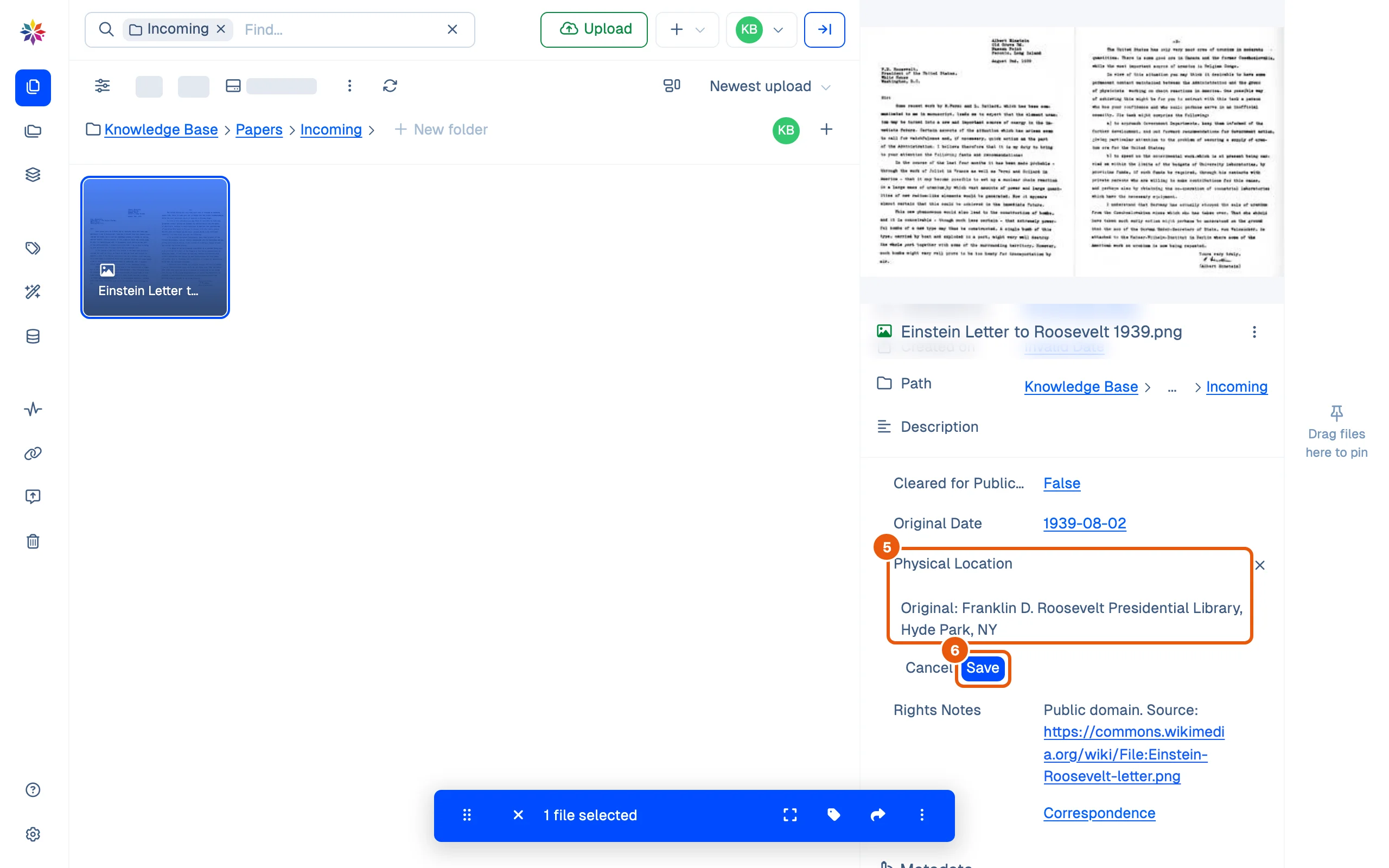
- Fill in fields in the same drawer: True, False or Unset for a yes/no field, a date box for a date field, Write something… for a paragraph, and a term list for a list field. A date or a paragraph needs Save; a choice from a list takes effect when you click it.
- To change one value on one file, open the file’s details, hover over the field’s row and click the pencil at its right end.
- Type the new value and click Save.
Create a custom field
If your workspace needs a field it does not have yet (here, Physical Location, where the paper original is kept):
- Click + beside Upload and choose Create Custom Field.
- Type the field’s name.
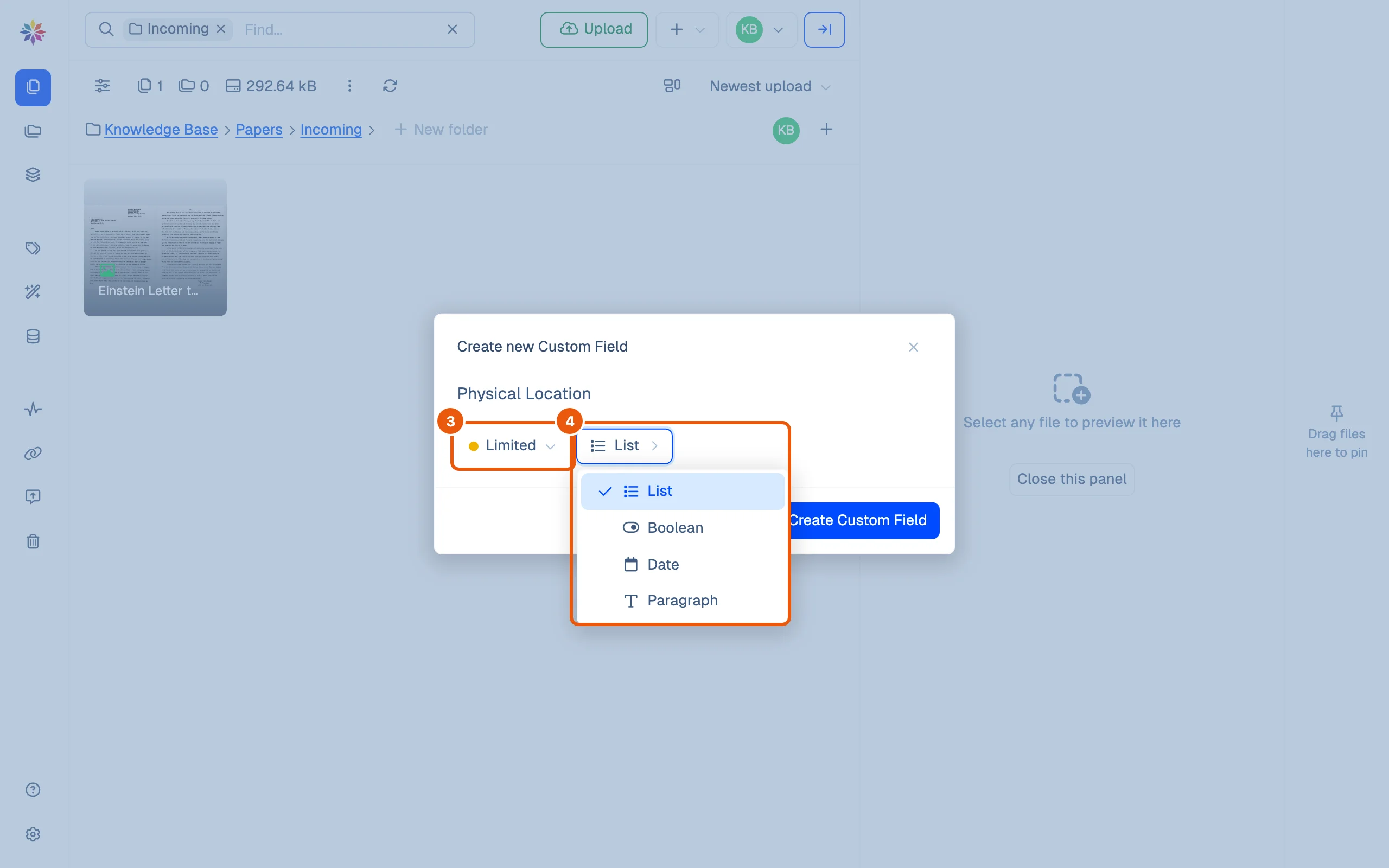
- Choose who can see it: Restricted (only Total access members), Limited (all members of the workspace) or Public (anyone, useful only when sharing files).
- Choose its type: List, Boolean, Date or Paragraph, and click Create Custom Field.
The new field appears as a row on every file, empty until someone fills it in.
Good to know
- Tags and fields can both be searched: a search for a word finds files whose tags or field values contain it. See Search.
- Filters work best on fields: a list term or a date is spelled the same on every file. See Filters.
- To set the same values on many files at once, select them with ⌘-click; the pane on the right becomes a batch pane with the same rows, and edits them all.
- A folder can fill in a field on every file uploaded into it: Flows.
The four field types
| Type | Holds | Filled in with |
|---|---|---|
| List | Terms from the field’s own vocabulary; new terms can be added as you go | Find or add… |
| Boolean | True or False | True / False, or Unset |
| Date | A day | A date box, then Save |
| Paragraph | Free text, links allowed | Write something…, then Save |
Questions
Should I use a tag or a field?
A tag is a free label, good for loose themes like "correspondence". A field holds one kind of fact (a date, yes or no, a term from a fixed list, a note), so everyone fills it in the same way and you can filter on it exactly.
Why doesn't the Tagging drawer show what the file already has?
The drawer adds values to every selected file; it does not list their current ones. Check the file's details on the right before and after.
Who can create a custom field?
The app says Total access members configure custom fields. This page was walked as the workspace owner.
Do links in a Paragraph field work?
Yes. A web address typed into a Paragraph field becomes a clickable link.