Sharing
Share a link
Send files to someone outside Starchive with a share link, find your links later, and delete one to stop sharing.
Archivist Admin
Checked in Starchive on October 13, 2026
You want to send a set of files to someone outside your workspace: an exhibit designer, a researcher, a publisher. A share link gives them a page of those files in their browser, with nothing to install and no account to create.
Create a link
- Select the files: click one, then ⌘-click the others (Ctrl-click on Windows). One file on its own works too.
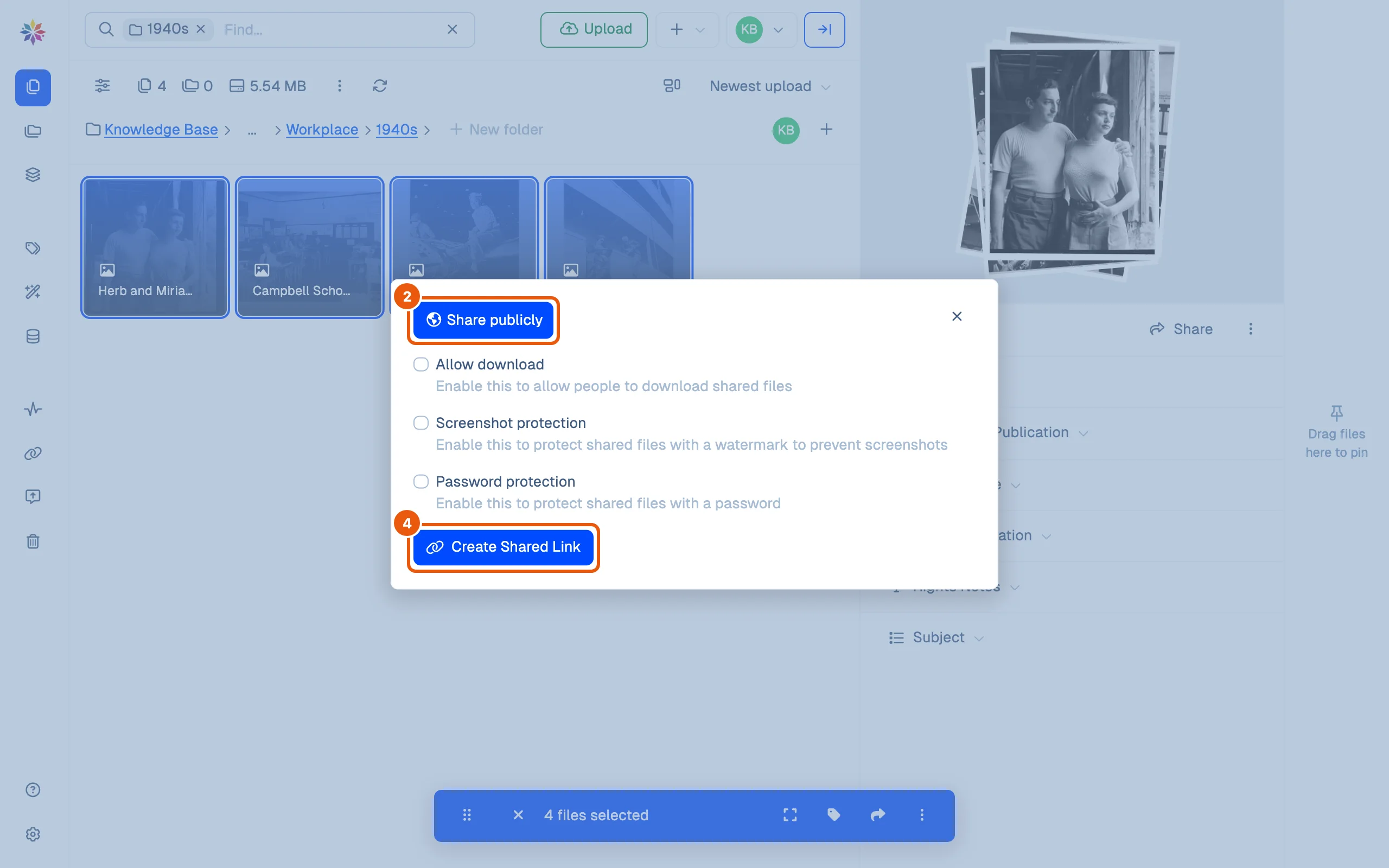
- Right-click one of the selected files and click Share. The dialog opens on Share publicly.
- Choose what the link allows. With nothing ticked, people can look at the files but not download them. The three settings are explained in Share settings.
- Click Create Shared Link. The dialog says Your Shared Link is live and shows its address.
- Click Copy URL and paste the address into your email or message. Open in a new tab shows you the page the other person will see.
Find your links later
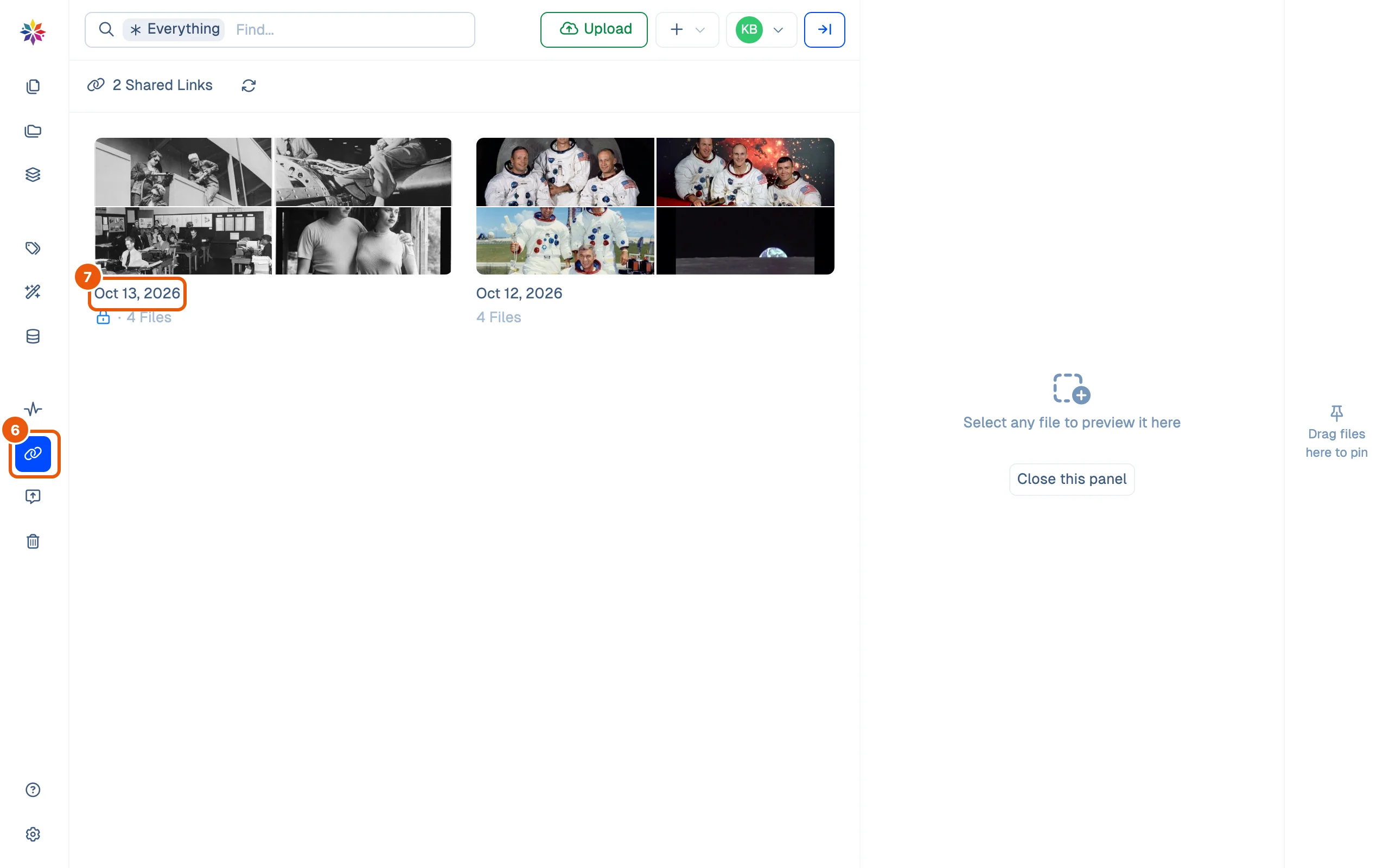
- In the left rail, click Shared Links. Every link in the workspace is a tile: its files, the day it was made and how many files it holds. A padlock marks a link with a password.
- Click a tile to open that link’s page, with its settings, its files, Copy URL and Delete.
Stop sharing
- On the link’s page, click Delete.
- Click Delete in the confirmation. A Shared Link deleted message appears.
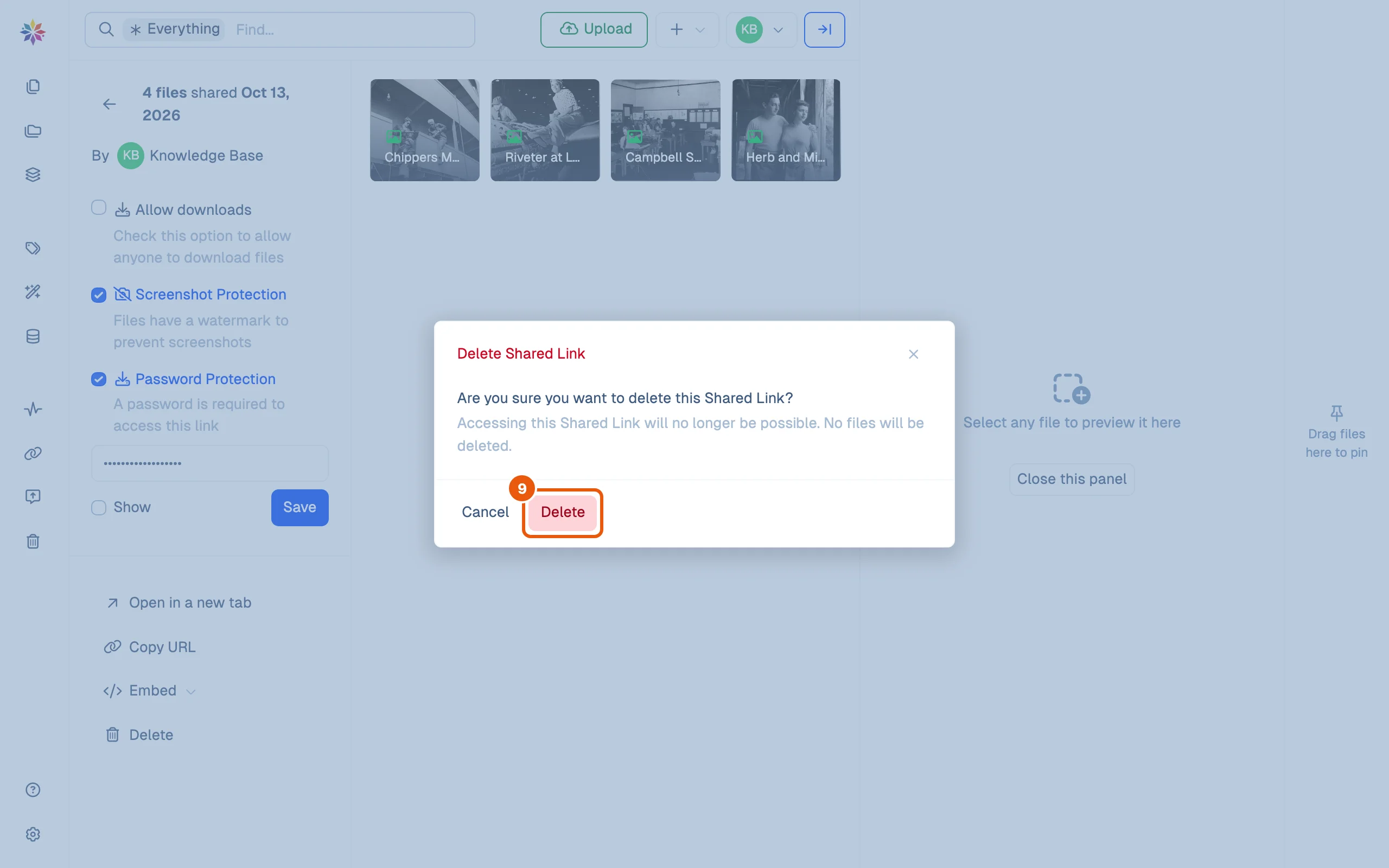
From then on the address opens a “page doesn’t exist” page. The files themselves are untouched.
Good to know
- Share links have no expiry date: a link works until someone deletes it.
- Deleting a link cannot be undone. To share the same files again, create a new link; it gets a new address.
- To send a file to a colleague who is already a member of your workspace, use Share internally instead; see Share settings.
- Who may share depends on the member’s access; see Roles and permissions.
What a link's tile and page show
| Where | What you see |
|---|---|
| Shared Links tile | Covers of the first four files, the day the link was made, a padlock if it has a password, the number of files |
| The link’s page | How many files, when and by whom it was shared, the three settings, the password (hidden until you tick Show), the files, Open in a new tab, Copy URL, Embed and Delete |
Questions
Does the person I send the link to need a Starchive account?
No. The link opens in any browser without signing in. See [Open a shared link](/guide/share/open-a-shared-link) for what they see.
Does deleting a link delete the files?
No. The confirmation says so. The files stay where they are; only the address stops working.
Can I make a link that stops working on a set date?
No. Delete the link when the person no longer needs it.