Administration
Groups
Give several members the same access at once by putting them in a group.
Admin
Checked in Starchive on October 13, 2026
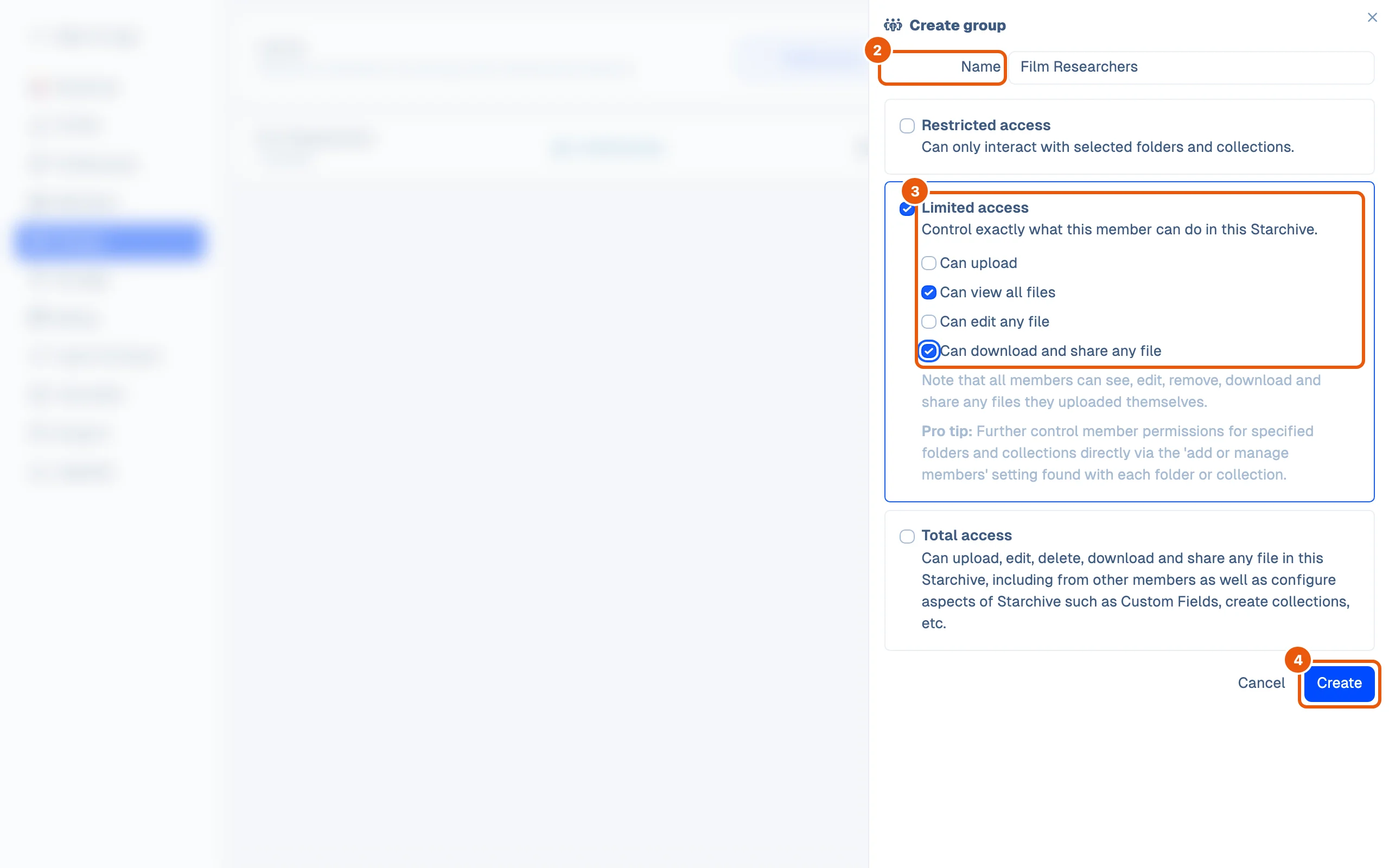
Several people need the same access, and you would rather set it once: here, a Film Researchers group that can view every file and download and share them, but not upload or edit.
Create the group
- Click Settings at the bottom of the left rail, then Groups, then Create group.
- Type its Name.
- Tick an access level, the same three as when inviting a member: Restricted access, Limited access with its four switches, or Total access.
- Click Create. A message confirms it, Group created, and the group is listed with 0 members.
Add members
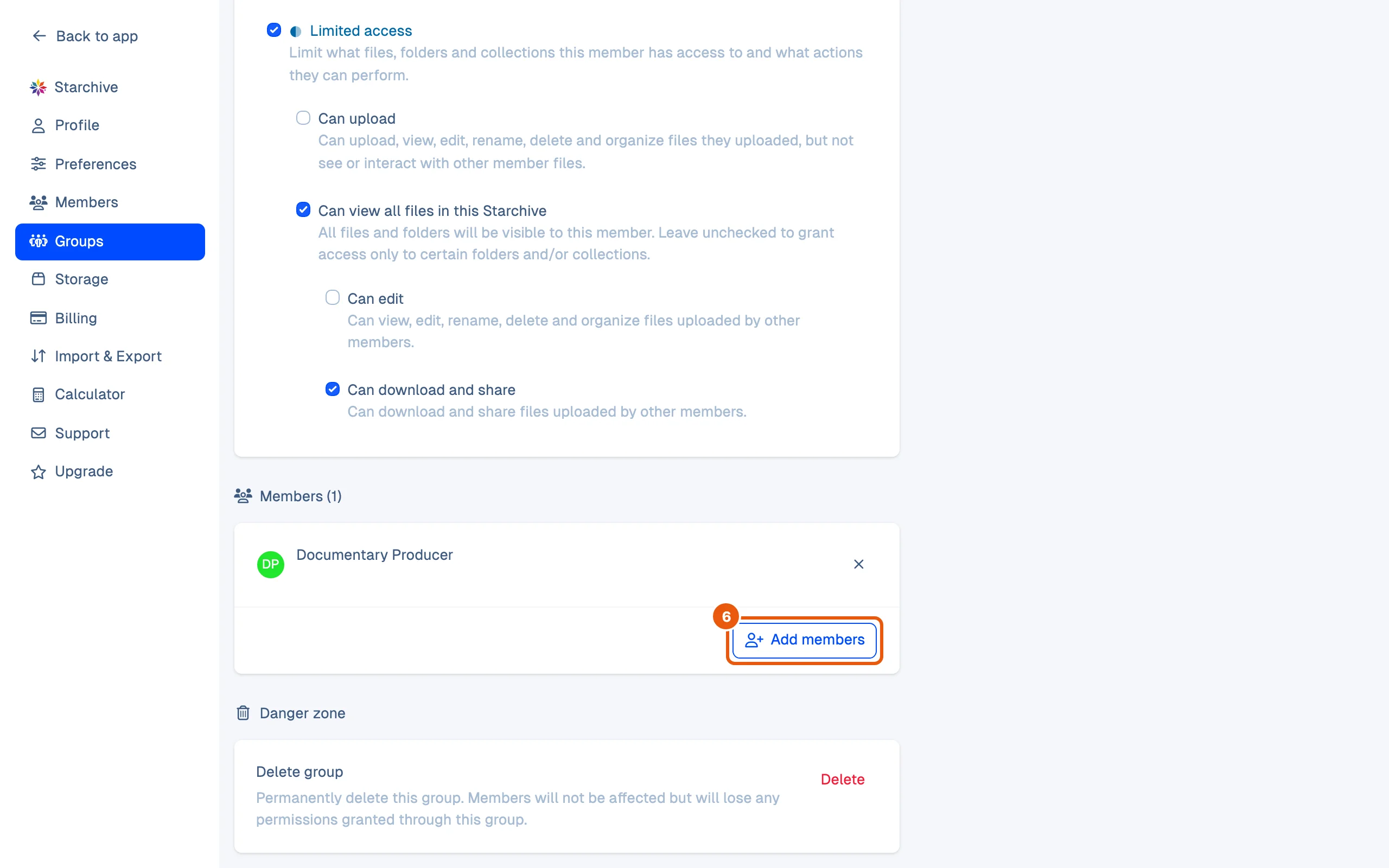
- Click the pencil at the end of the group’s row. Its page shows the name, the permissions, its Members and a Danger zone.
- Click Add members, tick the members in the list (Search members… narrows it), and click Add. A message confirms it, 1 member added.
Good to know
- The group’s page shows its permissions the way a member’s page does: Can edit and Can download and share sit under Can view all files. Change them there and save.
- A member’s page lists the groups they are in; see Members and roles.
- Delete group, under Danger zone: Permanently delete this group. Members will not be affected but will lose any permissions granted through this group.
- A collection’s Members dialog has a Groups tab beside Members, to give a group a collection; see Collections.
This page's group
Film Researchers: Limited access with Can view all files and Can download and share any file. Its one member is Documentary Producer, who already had those permissions on their own, so the group changed nothing for them. Delete group was not pressed.
Questions
What happens to the members when I delete a group?
They stay members. As the page warns, they lose any permissions they had through the group.
Where does a member see their groups?
On their own Settings → Profile, under Groups. An admin sees them on the member's page too.