Working with files
Edit many files at once
Select several files and set a tag or a field on all of them in one go.
Archivist Admin
Checked in Starchive on October 13, 2026
You have a set of files that share a fact (here, three phone scans whose paper prints sit in the same drawer) and want to record it on all of them without opening each one.
Steps
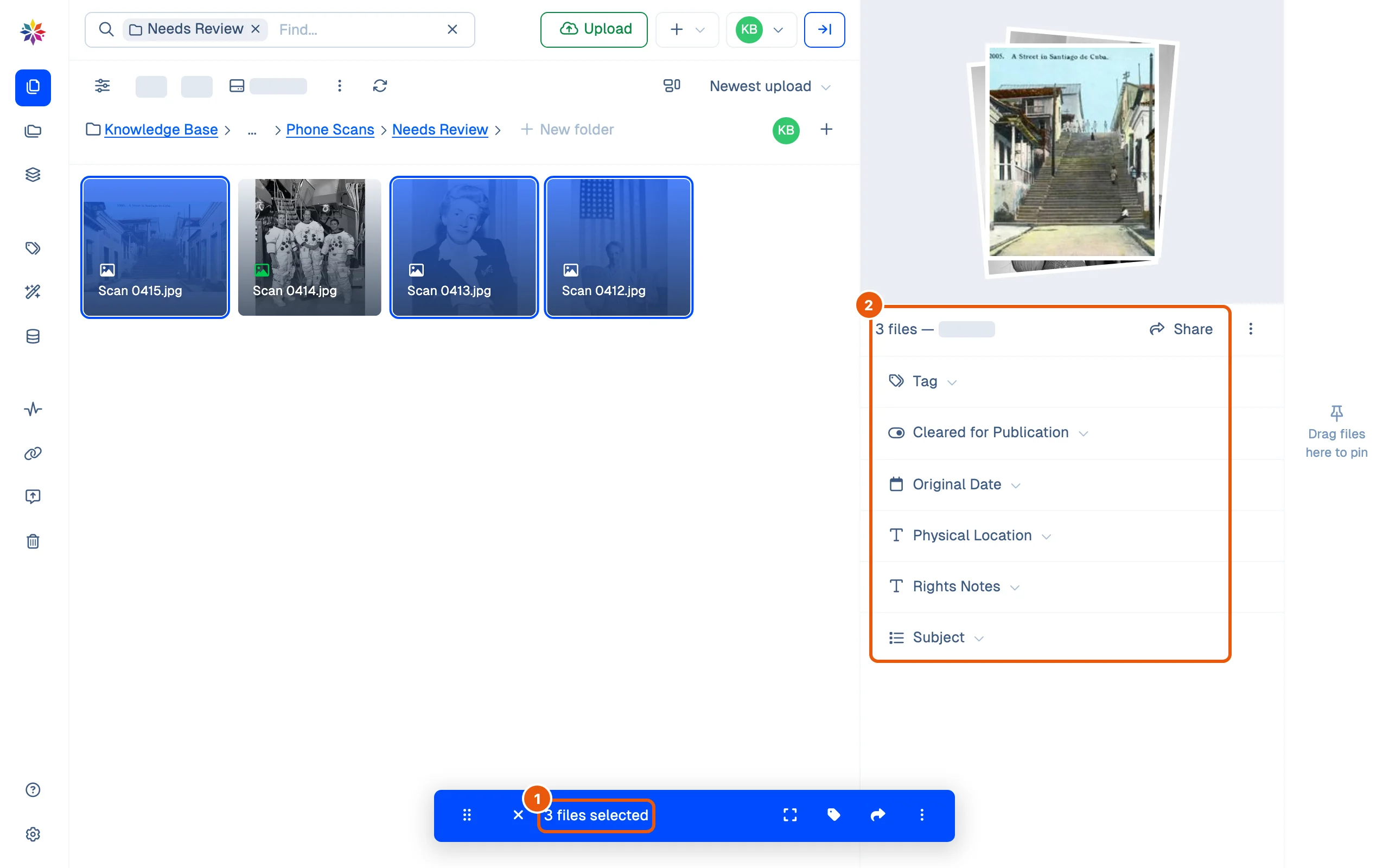
- Click the first file, then hold ⌘ (Command) and click each of the others. The bar at the bottom counts them: 3 files selected.
- The panel on the right becomes the batch pane: the number of files and their total size, Share, a ⋮ menu, then Tag and one row per custom field.
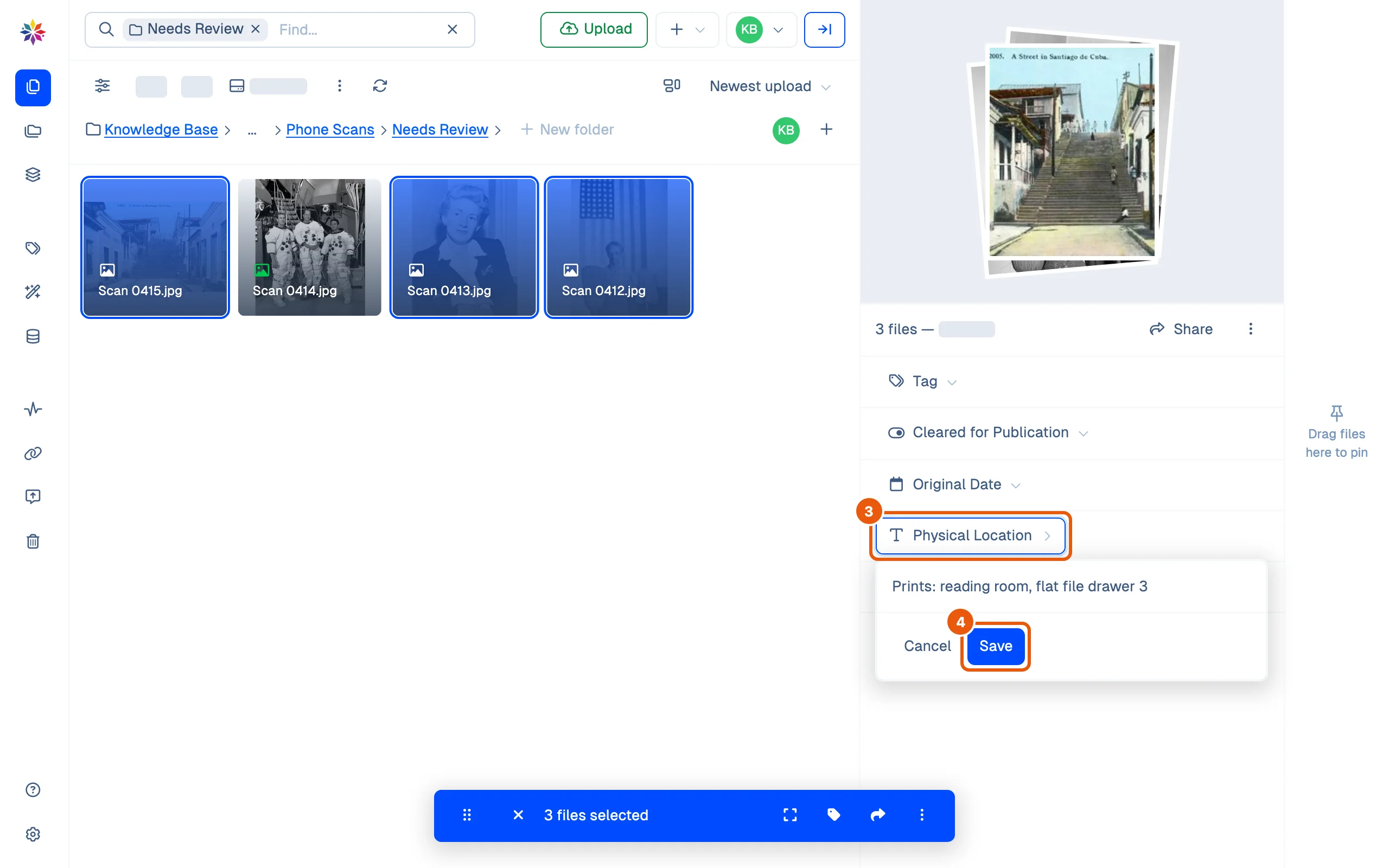
- Click the row to fill in, here Physical Location, and type the value into Write something….
- Click Save. A message confirms it: Field “Physical Location” has been written to 3 files.
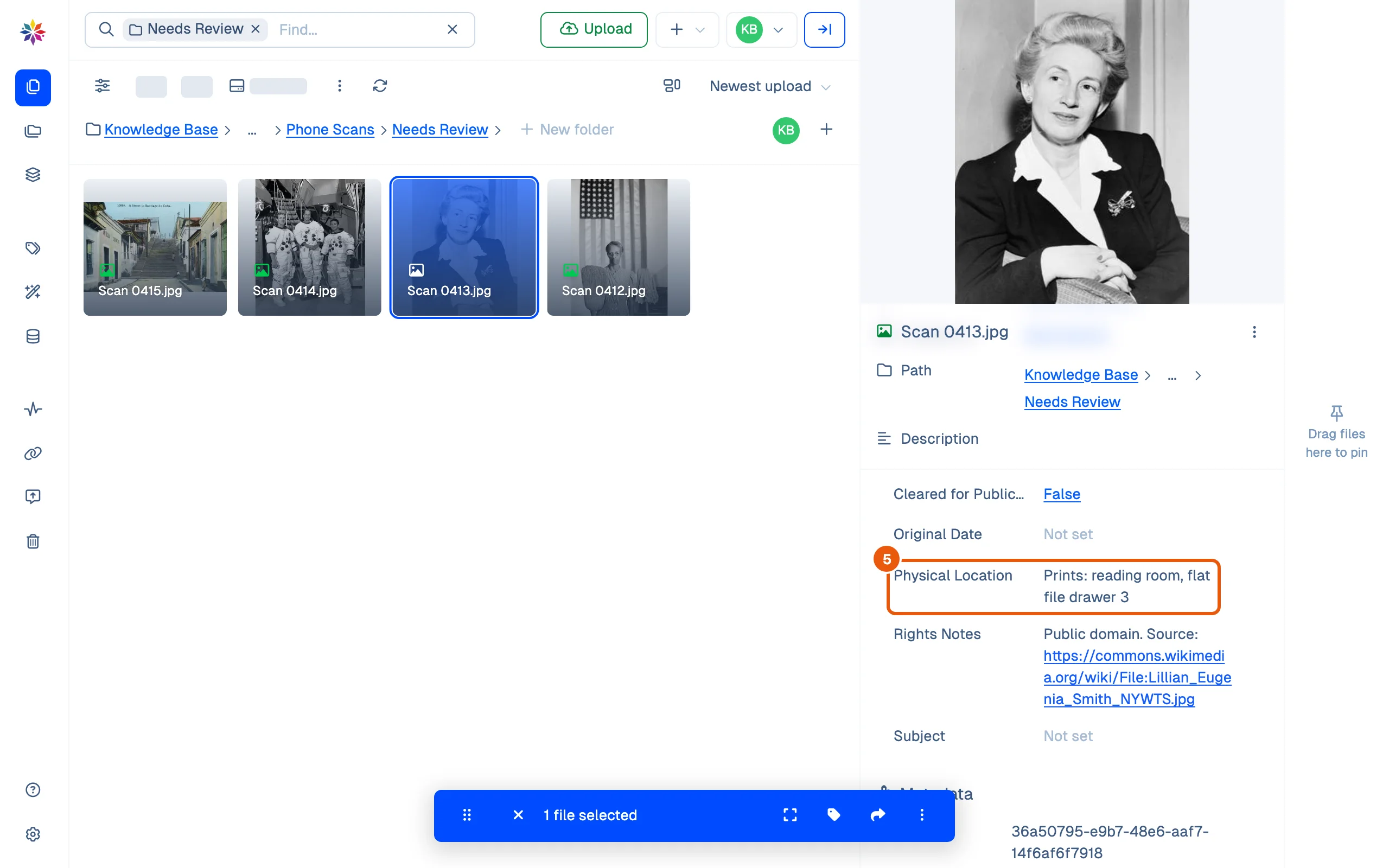
- Click one of the files on its own and check its details: the field now holds the value you typed.
Good to know
- The other rows open the same pickers as the file’s Tag drawer: a tag, a yes or no, a date, a term from a list. See Tags and fields.
- The batch pane does not show what the files hold already. Check one file before and after.
- With several files selected, the file menu (right-click) offers Expand, Pin, Add to Collection…, Tag, Share, Download as…, Move to… and Move to Trash. Copy name, Rename and Open folder work on one file at a time.
- Expand in that menu opens the selected files in the viewer, one after another (Viewing 1 of 2 files for two).
- The × in the bottom bar clears the selection.
When to use a batch edit, a flow or a single edit
| You want to… | Use |
|---|---|
| Record one fact on files you can select together | A batch edit (this page) |
| Record it on every file that will be uploaded into a folder | A flow |
| Correct one file | The pencil on its row in the file’s details; see Tags and fields |
Questions
Can I undo a batch edit?
The message after a field is written offers no Undo. To put a value back, select the same files and write the old value the same way.
Why are the rows in the batch pane empty?
The batch pane writes values; it does not show the ones the files already have, which may differ from file to file. Click a single file to see its own.
How do I add a value to every file as it is uploaded, instead of afterwards?
Give the folder a flow. See [Flows](/guide/add/flows).